Quick answer
- AI scheduling assistants automate calendar invites, handle time zones, and propose meeting slots without manual coordination
- Motion and Reclaim.ai work best for teams with shared calendars; Clockwise offers smart buffer time between meetings
- Calendly AI and Cal.com suit freelancers who need simple booking pages with automated reminders
- Most tools integrate with Google Calendar, Outlook, and Zoom; pricing ranges from free plans to $12–$30/user/month
- Test free trials with your actual calendar before committing to a paid plan
Coordinating meetings across time zones and busy calendars eats up hours every week. AI scheduling assistants handle the back-and-forth for you, proposing times, sending invites, and syncing with your existing calendar tools.
This guide compares the best AI scheduling assistants for freelancers and remote teams. You’ll see what each tool does well, where it falls short, and how to choose one that fits your workflow.
What an AI Scheduling Assistant Actually Does
An AI scheduling assistant automates the steps between “let’s meet” and a confirmed calendar invite. It checks your availability, proposes times that work for everyone, handles time zone conversions, and sends reminders.
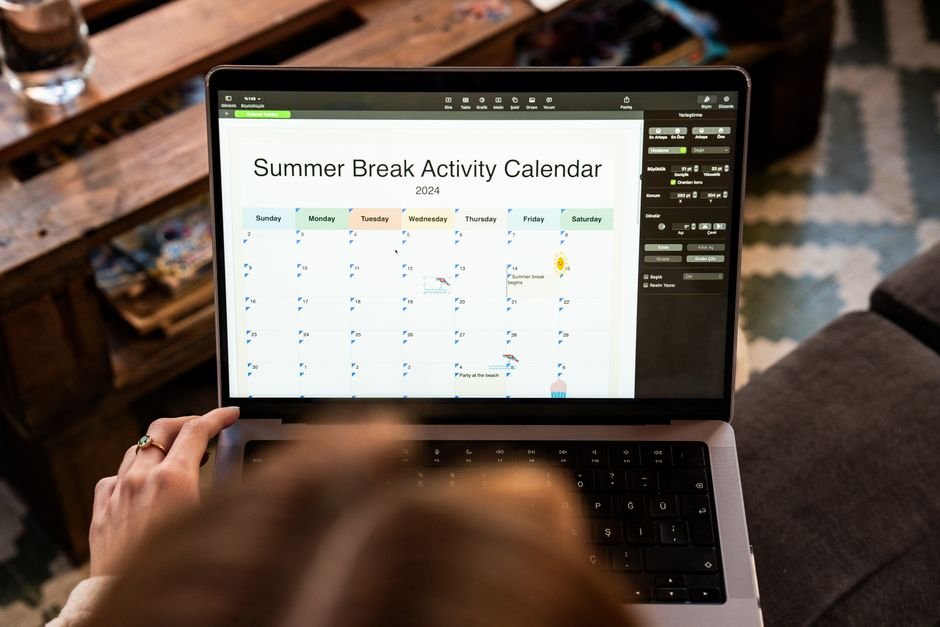
Most tools integrate with Google Calendar, Outlook, and video conferencing platforms like Zoom or Google Meet. Some also learn your preferences—like avoiding back-to-back meetings or blocking focus time—and adjust suggestions over time.
For freelancers juggling multiple clients, these tools replace the endless “Does Tuesday work?” email chains. For remote teams, they sync across time zones and prevent double-bookings without a manual calendar audit.
Motion: Smart Scheduling with Automatic Task Prioritization
Motion combines calendar management with task prioritization. It doesn’t just find meeting slots; it also schedules your to-do list around those meetings, moving tasks automatically when your calendar changes.
The AI analyzes deadlines, estimated task duration, and your calendar blocks to build a daily plan. When a new meeting appears, Motion reshuffles everything to fit. This works well for freelancers who need both meeting coordination and project time protection.
Motion costs $34/month (billed annually) or $19/month per user for teams. There’s a 7-day free trial, but no free plan. The price is higher than most scheduling-only tools because it bundles task management.
The interface feels dense at first—there’s a learning curve if you’re used to simpler booking pages. But if you want one tool that handles both scheduling and workload planning, Motion is worth testing alongside a Notion workload tracker to compare workflows.
Reclaim.ai: Defend Focus Time and Sync Team Calendars
Reclaim.ai automatically blocks focus time, syncs personal and work calendars, and reschedules habits (like weekly reviews or lunch breaks) when meetings conflict. It’s built for remote teams who need shared visibility without sacrificing deep work.

The tool labels time blocks as “flexible” or “locked,” so when someone requests a meeting, Reclaim can move flexible tasks but protect your focus hours. It also syncs calendars across accounts—useful if you keep client work separate from internal team calls.
Reclaim.ai offers a free plan for individuals with unlimited calendar syncing and basic scheduling links. Paid plans start at $8/user/month for teams and add features like Slack integration, priority support, and advanced analytics.
The downside: Reclaim works best when your whole team uses it. If you’re a solo freelancer, the free plan is generous, but the team-specific features won’t add much value. It pairs well with AI notetakers for automating the full meeting workflow.
Clockwise: Optimize Meeting Blocks and Reduce Context Switching
Clockwise analyzes everyone’s calendar and clusters meetings into blocks, leaving longer stretches of uninterrupted time. Instead of scattering five 30-minute calls across a day, it groups them into two hours, freeing up the rest for focused work.
The AI runs continuously in the background, moving flexible meetings when it finds better slots. You set your preferences—like “no meetings before 10 a.m.” or “protect Fridays”—and Clockwise adjusts schedules across the team.
Clockwise has a free plan with unlimited calendar optimization for individuals. The Team plan costs $6.75/user/month and adds shared scheduling links, team analytics, and Slack notifications. Enterprise pricing is custom.
Clockwise shines for teams with recurring internal meetings. If most of your calls are external (client pitches, freelance consultations), the automated rescheduling won’t help as much. For internal coordination, it’s one of the smartest tools available—and it integrates with the productivity workflows covered in our best AI tools for freelancers guide.
Calendly AI: Simple Booking Pages with Intelligent Routing
Calendly is the most widely recognized scheduling tool, and its AI features now include smart meeting routing and automatic time zone detection. You share a booking link, invitees pick a slot, and Calendly sends calendar invites to everyone.
The AI layer adds routing rules—like sending sales calls to one calendar and support calls to another—and suggests optimal meeting lengths based on the event type. It also detects buffer time violations and warns you before you end up with back-to-back calls all day.
Calendly’s free plan allows one event type and unlimited bookings. Paid plans start at $10/month (Essentials) and go up to $16/month (Professional), adding features like group polls, workflow automation, and Salesforce integration.
Calendly is best for freelancers who want a public booking page without managing complex team calendars. The AI features are helpful but not transformative—this is still fundamentally a booking link tool, not a full calendar assistant.
Cal.com: Open-Source Alternative with Customizable Workflows
Cal.com is an open-source scheduling platform you can self-host or use as a hosted service. It offers booking pages, team scheduling, and workflow automation—similar to Calendly, but with more control over data and customization.
The AI features include automatic event categorization, smart availability suggestions, and integration with tools like Zapier and Make (formerly Integromat) for custom workflows. Because it’s open-source, developers can extend functionality or build integrations that don’t exist in other tools.
Cal.com has a free plan with unlimited event types and bookings. Paid plans start at $12/user/month for teams and add branded booking pages, payment collection, and advanced routing. Self-hosting is free if you have technical skills.
Cal.com works well for freelancers who want full control or teams who need privacy compliance (self-hosting keeps data on your servers). The interface is less polished than Calendly, but the flexibility is unmatched. If you’re already managing projects in Notion, you might pair this with a Notion CRM template to track client bookings.
Ready-made Notion template
AI Project Command Center
A Notion template to track every AI tool you pay for, score its ROI, keep a prompt library and log experiments. Includes 12 pre-built AI workflows and 20+ ready-to-use prompts. Works on Notion's free plan.
Trevor AI: Time Blocking with Visual Drag-and-Drop Planning
Trevor AI focuses on time blocking: you drag tasks from a list onto your calendar, and the AI suggests optimal slots based on deadlines, energy levels, and existing meetings. It’s less about coordinating with others and more about structuring your solo work day.
The tool integrates with Todoist, Google Calendar, and Outlook. When a meeting gets added, Trevor notifies you and suggests where to move displaced tasks. It also tracks how long tasks actually take versus your estimates, helping you plan more accurately over time.
Trevor AI offers a free plan with basic time blocking and calendar sync. The Pro plan costs $3.99/month and adds recurring tasks, focus mode, and analytics. It’s one of the cheapest options here.
Trevor is ideal for solo freelancers who don’t need team scheduling but want to stop overcommitting. If you’re already using Notion for project management, Trevor can complement a Notion setup for freelancers by translating project tasks into daily time blocks.
Comparison Table: Features, Pricing and Best Use Cases
| Tool | Best For | Free Plan | Paid Plan (starting) | Key Feature |
|---|---|---|---|---|
| Motion | Task + calendar automation | No | $34/month | Auto-reschedules tasks around meetings |
| Reclaim.ai | Remote teams, focus time protection | Yes | $8/user/month | Syncs personal + work calendars |
| Clockwise | Meeting block optimization | Yes | $6.75/user/month | Clusters meetings, frees focus blocks |
| Calendly | Public booking pages for freelancers | Yes | $10/month | Smart routing, buffer time alerts |
| Cal.com | Self-hosting, custom workflows | Yes | $12/user/month | Open-source, full data control |
| Trevor AI | Solo time blocking and task planning | Yes | $3.99/month | Drag-and-drop task scheduling |
How to Choose the Right AI Scheduling Assistant
Start by identifying your biggest scheduling pain point. If it’s client booking links, Calendly or Cal.com will solve that in ten minutes. If it’s protecting deep work time across a team, Reclaim.ai or Clockwise are better fits.
Test free plans with your real calendar for at least a week. AI scheduling tools need data to learn your patterns, so a one-day trial won’t show you much. Pay attention to how many manual adjustments you still make—if you’re constantly overriding the AI, the tool isn’t reading your preferences correctly.
Check integration requirements before committing. Most tools work with Google Calendar and Outlook, but if you use Apple Calendar, Fantastical, or a niche CRM, verify compatibility. Some AI features only activate when certain integrations are enabled.
If you’re managing multiple AI tools alongside scheduling assistants, the AI Project Command Center Notion template helps you track subscriptions, measure ROI, and store prompts in one place. It works on Notion’s free plan and includes 12 pre-built workflows for common AI tasks.
Common Pitfalls and How to Avoid Them
Over-automating before you understand the tool leads to scheduling conflicts. Start with one event type or one team calendar, let the AI learn for a few days, then expand. Most tools have a “learning period” where suggestions improve as they analyze your behavior.
Ignoring time zone settings causes missed meetings. Double-check that your calendar’s default time zone matches your location, especially if you travel or work with global clients. AI tools rely on accurate calendar metadata to convert times correctly.
Not setting buffer time between meetings results in back-to-back days. Most AI scheduling assistants let you define minimum gaps (5, 10, or 15 minutes). Configure this before sharing booking links, or you’ll end up with no breaks.
For more ways to save time with AI, explore our full list of AI tools tested for freelancers and small teams.
Using AI Scheduling Assistants with Your Existing Workflow
AI scheduling assistants work best when layered into your current tools, not as replacements. If you manage projects in Notion, keep doing that—just connect your scheduling assistant to the same Google Calendar or Outlook account your Notion workspace syncs with.
For example, you might use Reclaim.ai to block focus time, Notion for remote team collaboration, and an AI notetaker to capture meeting summaries. Each tool handles one part of the workflow without duplicating effort.
Set up forwarding rules or Zapier automations if you want meeting details logged automatically in a CRM or project tracker. Most scheduling tools support webhooks or native integrations with Notion, Airtable, and other databases.
What to Expect from AI Scheduling in 2026 and Beyond
AI scheduling assistants are adding predictive features—like suggesting the best meeting time based on participant energy patterns or historical productivity data. Some tools are testing voice-based scheduling, where you say “book a call with Sarah next week” and the AI handles the rest.
Privacy and control remain key concerns. As these tools analyze more calendar data, check each provider’s data retention and sharing policies. Self-hosted options like Cal.com address this by keeping all data on your servers.
Expect tighter integration with project management platforms and AI assistants. The line between “scheduling a meeting” and “creating an agenda, inviting the right people, and prepping a brief” is blurring. Tools that bundle these steps will likely dominate the market.
Final Recommendations: Which AI Scheduling Assistant to Pick
For freelancers who need simple client booking: Start with Calendly’s free plan or Cal.com if you want open-source flexibility. Both give you a public link and automated reminders without a steep learning curve.
For remote teams protecting focus time: Reclaim.ai (free for individuals, $8/user/month for teams) or Clockwise (free plan available) will defend deep work blocks and reduce meeting sprawl.
For solo workers managing tasks and meetings: Motion or Trevor AI turn your calendar into a task manager. Motion costs more but handles complex projects; Trevor is cheaper and simpler.
Try one tool for two weeks with your real calendar and client load. If it saves you more than an hour a week, it’s worth keeping. If you’re still manually juggling time slots, switch to a different option from this list.
Frequently asked questions
Do AI scheduling assistants work with Apple Calendar?
Most AI scheduling assistants integrate with Google Calendar and Outlook, but direct Apple Calendar support is limited. You can sync Apple Calendar with Google Calendar or Outlook and connect the AI tool to that account. Check each tool's integration page for current Apple Calendar compatibility.
Can I use an AI scheduling assistant without sharing my full calendar?
Yes. Most tools let you choose which calendars to sync and mark events as private. For example, Calendly and Reclaim.ai only check availability—invitees don't see event details. You can also create a separate work calendar and sync only that with the AI tool.
How much time does an AI scheduling assistant actually save?
Freelancers report saving 2–5 hours per week by eliminating back-and-forth emails for meeting coordination. Remote teams using tools like Clockwise or Reclaim.ai save additional time by reducing context switching and protecting focus blocks. Actual savings depend on how many meetings you schedule weekly.
Are free AI scheduling tools good enough for freelancers?
Yes, for most freelancers. Calendly's free plan, Cal.com, Reclaim.ai, and Clockwise all offer free tiers with core scheduling features. Paid plans add team collaboration, advanced routing, and analytics—upgrade only if you need those specific features.
Do AI scheduling assistants handle time zones automatically?
Yes. All major AI scheduling assistants detect invitee time zones and display available slots in their local time. Make sure your own calendar's default time zone is set correctly, especially if you travel frequently or work across regions.
Can I use an AI scheduling assistant with Zoom or Microsoft Teams?
Yes. Most tools auto-generate Zoom or Microsoft Teams meeting links when someone books a time slot. You'll need to connect your Zoom or Teams account in the tool's settings. Google Meet and other conferencing platforms are also widely supported.