Quick answer
- [
- "
- U
- s
- e
- A
- I
- p
- r
- o
- m
- p
- t
- s
- t
- o
- b
- r
- e
- a
- k
- d
- o
- w
- n
- v
- a
- g
- u
- e
- b
- a
- c
- k
- l
- o
- g
- i
- t
- e
- m
- s
- i
- n
- t
- o
- a
- c
- t
- i
- o
- n
- a
- b
- l
- e
- t
- a
- s
- k
- s
- w
- i
- t
- h
- c
- l
- e
- a
- r
- a
- c
- c
- e
- p
- t
- a
- n
- c
- e
- c
- r
- i
- t
- e
- r
- i
- a
- "
- ,
- "
- G
- e
- n
- e
- r
- a
- t
- e
- p
- r
- i
- o
- r
- i
- t
- y
- s
- c
- o
- r
- e
- s
- a
- n
- d
- e
- f
- f
- o
- r
- t
- e
- s
- t
- i
- m
- a
- t
- e
- s
- t
- o
- d
- e
- c
- i
- d
- e
- w
- h
- a
- t
- e
- n
- t
- e
- r
- s
- y
- o
- u
- r
- "
- T
- o
- D
- o
- "
- c
- o
- l
- u
- m
- n
- n
- e
- x
- t
- "
- ,
- "
- A
- s
- k
- A
- I
- t
- o
- i
- d
- e
- n
- t
- i
- f
- y
- b
- l
- o
- c
- k
- e
- r
- s
- ,
- d
- e
- p
- e
- n
- d
- e
- n
- c
- i
- e
- s
- ,
- a
- n
- d
- r
- i
- s
- k
- s
- f
- o
- r
- i
- n
- –
- p
- r
- o
- g
- r
- e
- s
- s
- t
- a
- s
- k
- s
- "
- ,
- "
- C
- r
- e
- a
- t
- e
- r
- e
- v
- i
- e
- w
- c
- h
- e
- c
- k
- l
- i
- s
- t
- s
- a
- n
- d
- r
- e
- t
- r
- o
- s
- p
- e
- c
- t
- i
- v
- e
- q
- u
- e
- s
- t
- i
- o
- n
- s
- t
- o
- c
- l
- o
- s
- e
- t
- a
- s
- k
- s
- a
- n
- d
- i
- m
- p
- r
- o
- v
- e
- y
- o
- u
- r
- p
- r
- o
- c
- e
- s
- s
- "
- ,
- "
- S
- t
- o
- r
- e
- y
- o
- u
- r
- b
- e
- s
- t
- p
- r
- o
- m
- p
- t
- s
- i
- n
- a
- l
- i
- b
- r
- a
- r
- y
- s
- o
- y
- o
- u
- r
- t
- e
- a
- m
- r
- e
- u
- s
- e
- s
- t
- h
- e
- m
- c
- o
- n
- s
- i
- s
- t
- e
- n
- t
- l
- y
- "
- ]
You’ve set up your Kanban board, organized your columns, and moved a few cards around. But each task still needs a clear description, acceptance criteria, priority labels, and regular check-ins to avoid bottlenecks.
Writing all that from scratch every time slows you down. AI prompts can generate task details, flag blockers, suggest priorities, and draft review questions in seconds—so you spend less time typing and more time shipping.
Below are ready-to-use AI prompt templates for every stage of a Kanban workflow, from backlog planning to review. Copy them into ChatGPT, Claude, or your tool of choice, adjust the placeholders, and refine the output.
Why Use AI Prompts for Kanban Boards?
Kanban keeps work visible and flowing, but clarity determines whether tasks actually move. Vague cards pile up, dependencies surprise you mid-sprint, and handoffs stall because no one knows what “done” means.
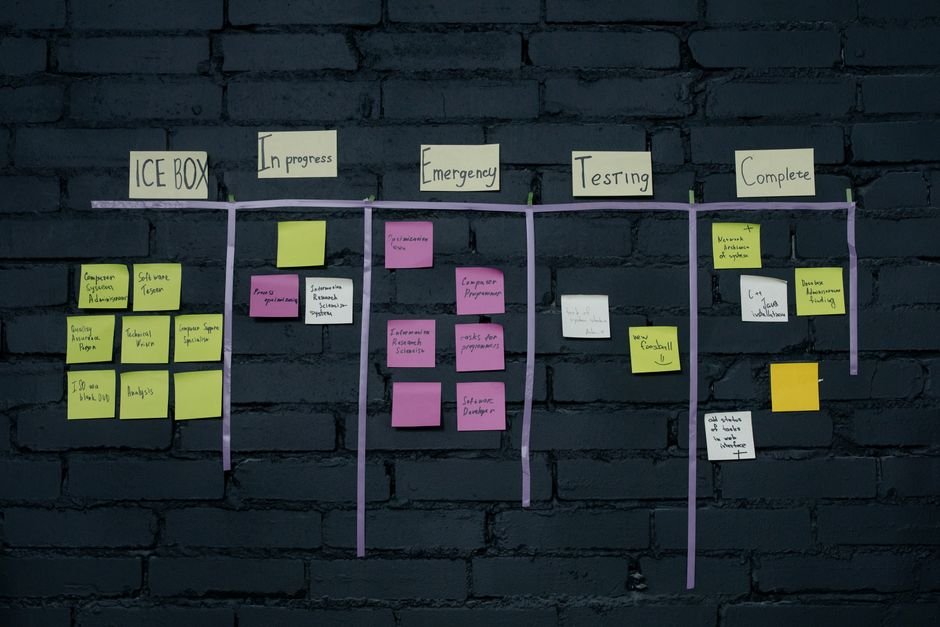
AI prompts help you:
- Turn fuzzy ideas into concrete tasks with clear outcomes and steps
- Estimate effort and priority without long planning meetings
- Spot blockers and dependencies before tasks hit “In Progress”
- Draft review checklists so you close tasks confidently
- Run lightweight retrospectives to improve your workflow
If you want a structured way to organize and reuse your best prompts, the AI Project Command Center includes a prompt library, workflow tracker, and 20+ pre-built templates you can adapt to your Kanban process.
AI Prompts for Backlog Refinement (Before “To Do”)
Your backlog is a list of rough ideas, feature requests, and bug reports. Before tasks enter “To Do,” they need enough detail for someone to pick them up and run.
Prompt: Turn a Vague Idea Into a Detailed Task
Copy this prompt and replace the placeholder:
I have a task idea: [brief description]. Break it into a clear task card with: 1) a one-sentence goal, 2) three to five concrete steps, 3) acceptance criteria (what “done” looks like), and 4) any questions or unknowns I should clarify first.
Example input: “Improve onboarding email.”
What you get: A structured task with a goal (“Increase activation by personalizing the first email”), steps (audit current copy, draft two variants, set up A/B test), acceptance criteria, and a reminder to check your email platform’s merge-tag syntax.
Prompt: Generate Acceptance Criteria
Use this when you know what to build but not how to test it:
Task: [description]. List five acceptance criteria I can check off to confirm this task is complete. Make them specific and testable.
For deeper guidance on acceptance criteria, see How to Use AI to Write Acceptance Criteria for User Stories.
AI Prompts for Prioritization (Choosing What Enters “To Do”)
You can’t do everything at once. AI prompts help you score tasks by impact, effort, and urgency—without spreadsheets or scoring frameworks you’ll abandon next week.

Prompt: Prioritize a List of Tasks
Feed AI your backlog and ask for a ranked list:
Here are five tasks: [list them]. Rank them by likely business impact and effort (high/medium/low). Suggest which two I should tackle first and why.
What you learn: Which tasks deliver quick wins, which need more research, and which you can defer.
Prompt: Estimate Effort and Complexity
When you’re unsure how long something will take:
Task: [description]. Estimate the effort (small, medium, large) and list the main complexity factors (dependencies, unknowns, technical risks).
This gives you a rough T-shirt size and flags anything that might balloon in scope.
AI Prompts for Planning and Task Setup (Moving Into “To Do”)
Once a task is ready to start, you need a clear checklist, relevant context, and a plan for handoffs or dependencies.
Prompt: Create a Step-by-Step Checklist
Turn a task description into a checklist someone else can follow:
Task: [description]. Create a numbered checklist of five to eight steps to complete this task, including any handoffs, approvals, or tools I’ll need.
Why it helps: You can copy the checklist into your Kanban card description, so anyone picking up the task knows exactly what to do.
Prompt: Identify Dependencies and Blockers
Before you start, check what might slow you down:
Task: [description]. List any dependencies (other tasks, people, or data I need first) and potential blockers (access, approvals, unknowns). Suggest how to mitigate each one.
If you’re managing multiple projects, How to Use ChatGPT for Project Management covers prompts for risk and dependency mapping in more detail.
AI Prompts for In-Progress Work (Keeping Tasks Moving)
Tasks in your “In Progress” or “Doing” column need regular check-ins to avoid stalling. AI can draft status updates, flag risks, and suggest next steps.
Prompt: Draft a Quick Status Update
When you need to report progress without a long write-up:
Task: [description]. Current status: [what’s done so far]. Draft a three-sentence status update covering what’s complete, what’s next, and any blockers.
Use case: Daily standups, Slack updates, or notes for async teams.
Prompt: Suggest Next Steps When You’re Stuck
When a task stalls and you’re not sure how to proceed:
Task: [description]. I’m stuck because [blocker or uncertainty]. Suggest three next steps I could take to move forward, including who I might need to ask or what I should research.
This prompt works especially well when you’re blocked by unclear requirements or missing information.
AI Prompts for Review and Handoff (Moving to “Done”)
Before you mark a task complete, you need to confirm it meets the acceptance criteria, document what you learned, and hand off any follow-up work.
Prompt: Create a Review Checklist
Generate a final QA list before closing the task:
Task: [description]. Create a five-point checklist I should verify before marking this task as done (e.g., functionality, documentation, handoff, follow-ups).
What you avoid: Reopening tasks because you forgot to update the wiki, notify the client, or test edge cases.
Prompt: Summarize What Was Delivered
When you need a quick summary for your team or client:
Task: [description]. Write a two-sentence summary of what was delivered and any important notes or follow-up actions.
You can paste this into your project log, Slack, or a meeting agenda.
Ready-made Notion template
AI Project Command Center
A Notion template to track every AI tool you pay for, score its ROI, keep a prompt library and log experiments. Includes 12 pre-built AI workflows and 20+ ready-to-use prompts. Works on Notion's free plan.
AI Prompts for Retrospectives and Workflow Improvement
Kanban thrives on continuous improvement. Use AI to draft retrospective questions, analyze cycle time, and suggest workflow tweaks.
Prompt: Generate Retrospective Questions
After completing a batch of tasks:
We just finished [number] tasks in [timeframe]. Generate five retrospective questions to help the team identify what slowed us down, what went well, and what we should change next cycle.
For more retrospective prompts and formats, see AI Tools for Sprint Retrospectives: Templates and Prompts.
Prompt: Analyze Bottlenecks in Your Workflow
When tasks pile up in one column:
Our “In Review” column has [number] tasks stuck for [timeframe]. Suggest three possible causes (e.g., unclear criteria, too few reviewers, dependencies) and a fix for each.
This helps you diagnose workflow problems without guesswork.
How to Store and Reuse Your Best Kanban Prompts
Once you’ve tested a few prompts, save the ones that work. A prompt library ensures your team uses the same format every time—no reinventing the wheel.
Simple storage options:
- Notion database: Create a table with columns for prompt text, use case, and tags. See How to Build an AI Prompt Database in Notion for Your Team.
- Google Doc or wiki page: List prompts by workflow stage (backlog, in progress, review).
- Saved replies in Slack or email: Store short prompts you use daily.
If you want a ready-made system, How to Track AI Experiments and Prompts in a Notion Database walks through tagging, versioning, and sharing prompts across projects.
Combining AI Prompts With Kanban Tools (Notion, Trello, Asana)
Most Kanban tools let you paste AI-generated text directly into task descriptions, comments, or checklists. Here’s how to integrate prompts into your workflow:
In Notion: Use AI prompts to draft task descriptions, then paste them into your Kanban board database. Add a “Prompt Used” property to track which prompts generated which tasks.
In Trello: Create card templates with placeholder text, then replace placeholders with AI-generated content. Use checklists for acceptance criteria and next steps.
In Asana: Add AI-generated descriptions and subtasks to each card. Use custom fields to tag tasks by priority or effort (based on AI estimates).
For a comparison of Kanban versus sprint-based workflows, see Kanban vs Scrum: Deciding the Best Methodology for Your Team’s Project Management Needs.
When to Write Your Own Prompts vs. Using Templates
Templates get you started fast, but custom prompts often deliver better results once you know your workflow.
Use templates when:
- You’re new to AI prompting and need examples
- Your tasks follow a predictable pattern (e.g., feature development, bug fixes)
- You want consistency across a team
Write custom prompts when:
- Your workflow has unique stages or handoffs
- You need AI to reference specific company knowledge or style guides
- You’re experimenting with new task types
For guidance on prompt clarity and structure, see How to Write Better Prompts for AI Tools in Business.
Common Mistakes When Using AI Prompts for Kanban
Pasting AI output without editing: AI drafts are starting points. Review and adjust for your context, tone, and team vocabulary.
Using the same prompt for every task type: A bug fix needs different details than a feature launch. Tailor prompts to task categories.
Skipping prompt versioning: When you refine a prompt, save the new version. You’ll forget which one worked best after a few weeks.
Not sharing prompts with your team: If only you know the magic prompt, the rest of your team wastes time rediscovering it. Document and share.
Adapting These Prompts to Other Workflows
While these prompts are built for Kanban, you can adjust them for other frameworks:
Scrum: Use backlog prompts during sprint planning, in-progress prompts during standups, and review prompts during sprint reviews. See Notion Sprint Planning Template for sprint-specific workflows.
Personal task lists: Simplify the prompts by removing team handoffs and dependencies. Focus on clarity and next steps.
Client projects: Add a prompt for client-facing summaries and deliverable descriptions. Freelancers can combine this with Notion Templates for Freelancers for end-to-end project tracking.
For a wider set of repeatable AI workflows across different business functions, see AI Workflow Templates: 12 Repeatable Workflows for Everyday Work.
Next Steps: Test One Prompt This Week
You don’t need to adopt all these prompts at once. Pick one stage of your Kanban workflow that feels slow or unclear—backlog refinement, prioritization, or review—and test one prompt there.
Try this:
- Choose a prompt from the section that matches your current bottleneck.
- Copy it into ChatGPT, Claude, or your AI tool and fill in the placeholders with a real task.
- Review the output and edit it to fit your workflow.
- Save the refined version in a prompt library or wiki so your team can reuse it.
Once you’ve tested a few, you’ll know which prompts save time and which need tweaking. Over time, you’ll build a custom set that fits your workflow exactly.
For more AI tools and strategies tailored to project workflows, explore the AI Tools category on Digitify.
Frequently asked questions
Can I use these AI prompts with any Kanban tool?
Yes. These prompts generate text you can paste into any Kanban tool—Notion, Trello, Asana, Jira, or even a physical board. The prompts are tool-agnostic; they help you draft task descriptions, checklists, and acceptance criteria that work anywhere.
Which AI tool should I use for Kanban prompts—ChatGPT, Claude, or Notion AI?
All three work. ChatGPT and Claude offer more control and longer context windows, so they're better for complex tasks or batch processing. Notion AI is faster if you're already working in Notion and want inline suggestions. For a detailed comparison, see Notion AI vs ChatGPT for Project Management on Digitify.
Create a prompt library in Notion, a shared Google Doc, or your team wiki. Tag each prompt by use case (e.g., backlog, review, prioritization) and include examples. Update the library when you refine a prompt so everyone uses the latest version.
Do I need to edit AI-generated task descriptions before using them?
Yes. AI drafts save time, but they don't know your company's terminology, constraints, or context. Always review and adjust the output to match your workflow, team vocabulary, and project requirements before pasting it into your Kanban board.
Can I use AI prompts for Kanban if I work solo?
Absolutely. Solo workers benefit from prompts that break down vague ideas, estimate effort, and create checklists. You skip the mental overhead of writing everything from scratch and get faster task clarity. For more solo-focused prompts, see AI Prompts for Solopreneurs on Digitify.
How often should I update my Kanban prompts?
Review your prompts every few weeks or whenever your workflow changes. If a prompt stops producing useful output—or you find yourself editing the same parts every time—refine it and save the new version. Track changes in your prompt library so you know what works best.