Quick answer
- Create a sprint board database with status, priority, and assignee properties
- Build a backlog database linked to sprints using Notion relations
- Add a team dashboard with filtered views for daily standups and sprint progress
- Set up a retrospective template for continuous improvement
- Configure automation with Notion AI for sprint planning and task estimation
Most agile teams juggle three or four tools: Jira for tickets, Confluence for docs, Slack for updates, and spreadsheets for reporting. Notion can consolidate all of this into one workspace, and you don’t need a full day to set it up.
This guide walks you through building a functional Notion agile workspace setup in one hour. You’ll create a sprint board, backlog system, team dashboard, and retrospective template that your team can start using immediately.
What You’ll Build in Your Notion Agile Workspace
Before you start, understand the core components. A lean agile workspace needs four elements: a sprint board for active work, a backlog for upcoming tasks, a dashboard for team visibility, and a space for retrospectives.

You can expand later with roadmaps, release notes, or meeting templates. But these four pieces will get your team moving. If you’re migrating from Jira, check out when Notion is enough for small teams.
Step 1: Create Your Sprint Board Database (15 Minutes)
Open a new Notion page and create a database. Name it “Sprint Board” and choose the table view to start. This database will hold all your active sprint tasks.
Add these essential properties:
- Task Name (Title) – The ticket or user story
- Status (Select) – To Do, In Progress, In Review, Done
- Assignee (Person) – Who’s responsible
- Priority (Select) – High, Medium, Low
- Story Points (Number) – Effort estimate
- Sprint (Select) – Which sprint cycle (Sprint 1, Sprint 2, etc.)
- Type (Select) – Story, Bug, Task, Spike
- Due Date (Date) – Sprint end date
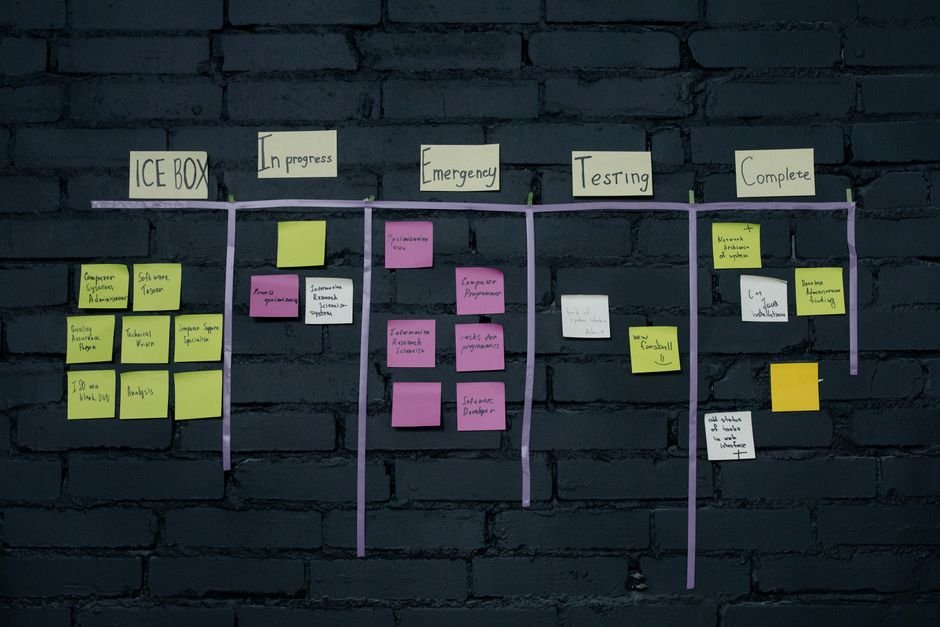
Create a kanban view by clicking “+ Add a view” and selecting Board. Group by Status so cards flow from To Do to Done. This becomes your daily standup view. Pin it to your sidebar for quick access.
If you want AI-powered task suggestions during planning, see how to build a sprint board with AI integration.
Step 2: Build Your Product Backlog (10 Minutes)
Create a second database called “Product Backlog.” This holds all future work that hasn’t been assigned to a sprint yet.
Add these properties:
- Task Name (Title)
- Priority (Select) – MoSCoW method works well (Must Have, Should Have, Could Have, Won’t Have)
- Status (Select) – New, Refined, Ready for Sprint
- Story Points (Number)
- Type (Select) – Story, Bug, Task
- Sprint (Relation) – Link to your Sprint Board database
Connect the backlog to your sprint board using a relation property. In the Backlog database, click the Sprint property, choose “Relation,” and select your Sprint Board database. This lets you pull items into sprints with one click.
Your backlog should use table view by default. Sort by Priority so your team always sees the most important work first. Learn more about using relations and rollups for project tracking.
Step 3: Set Up Your Team Dashboard (15 Minutes)
Create a new page called “Agile Dashboard.” This becomes your team’s home base. Add it to your sidebar and set it as the default page team members see when they open Notion.
Add a heading and your current sprint goal. Use a callout block (type /callout) to highlight what the team is trying to achieve this sprint. Update this every sprint planning session.
Embed a filtered view of your Sprint Board. Type /linked and choose your Sprint Board database. Apply these filters:
- Sprint = Current Sprint
- Status ≠ Done
Group this view by Assignee so everyone sees their own tasks at a glance. This replaces the need for verbal check-ins during standup.
Add a second linked view for completed work. Filter for Sprint = Current Sprint and Status = Done. This gives your team a visual sense of progress and momentum.
Include a quick-access section with buttons or links. Add shortcuts to your backlog, retrospective template, and any recurring meeting notes. For distributed teams, consider adding a section for async updates—see how Notion can replace multiple remote-work tools.
Step 4: Create a Sprint Planning Template (10 Minutes)
Make a new page called “Sprint Planning Template.” Turn it into a template by clicking the three dots, then “Turn into Template Database.” This lets you duplicate it for each sprint.
Structure your template with these sections:
- Sprint Goal – One-sentence objective
- Capacity – Available story points (team size × velocity × working days)
- Committed Work – Linked database view of Sprint Board filtered to this sprint
- Notes – Risks, dependencies, or decisions made during planning
Add a rollup property to calculate total story points. In your Sprint Planning page, create a Rollup that sums Story Points from the linked Sprint Board items. This shows if you’re over or under capacity at a glance.
If your team tracks goals alongside sprints, you can build an OKR tracker in Notion that ties sprint work to quarterly objectives.
Step 5: Add a Retrospective System (5 Minutes)
Create a database called “Sprint Retrospectives.” Each entry represents one retro session.
Add these properties:
- Sprint (Title) – Sprint 1, Sprint 2, etc.
- Date (Date)
- Facilitator (Person)
Inside each retro page, add toggle blocks for What Went Well, What Didn’t, and Action Items. Type /toggle to create collapsible sections. This keeps retros scannable when you review past learnings.
Add a linked database view on your dashboard showing the three most recent retros. This keeps improvement top of mind and prevents repeating mistakes. If you also run regular team meetings, combine this with a meeting agenda template.
Step 6: Configure Views for Different Roles (5 Minutes)
Create role-specific views so team members see what matters to them. In your Sprint Board database, add these filtered views:
- My Tasks – Filter by Assignee = Current User, Status ≠ Done
- Blocked Items – Add a “Blocked” checkbox property, filter where Blocked = True
- This Week – Filter by Due Date within the next 7 days
For product owners, add a Backlog Grooming view. Filter for Status = New, sort by Priority descending. This makes backlog refinement sessions faster.
Each view can be saved and shared with a direct link. Pin the most-used views to your sidebar. If you’re managing a backlog with recurring operational work, see how to structure recurring tasks and SOPs.
Ready-made Notion template
Scrum Board PRO
A complete agile project-management system in Notion: sprint board, backlog with MoSCoW priorities, bug tracker, sprint planner with burndown, meeting notes and reports. Set up in 10 minutes, no monthly subscription.
Optional Enhancements You Can Add Later
Once your core workspace is running, consider these additions. None are required on day one, but they solve common agile pain points.
Roadmap database: Link epics or features to sprints so stakeholders see the big picture. Notion’s timeline view works well for quarterly planning—learn how to build a product roadmap.
Bug tracker: Add a “Severity” property and create a filtered view for Type = Bug. This gives developers a focused list without cluttering the sprint board.
Release notes: Create a simple database that pulls Done items from each sprint and formats them for customer updates. Link it to your sprint planning pages.
Decision log: Track architectural choices, tech stack decisions, or scope changes. This becomes critical as your team grows—here’s how to build a decision log for product teams.
Using Notion AI to Speed Up Sprint Planning
Notion’s AI features can automate parts of your agile workflow. You don’t need them to get started, but they save time once your workspace is live.
Use AI to draft user stories from feature descriptions. Highlight a feature request in your backlog, click “Ask AI,” and prompt it to “Write three user stories for this feature with acceptance criteria.”
Generate retrospective summaries. After a retro, use AI to summarize action items and key themes from the discussion. Paste this into a shared Slack channel or email.
Estimate story points with AI assistance. Describe a task and ask AI to suggest a story-point estimate based on similar completed work. This works better once you have historical data in your Sprint Board.
If you want to go deeper, see how to use AI to draft OKRs that align with your sprint goals.
When to Use a Pre-Built Template Instead
Building from scratch teaches you how Notion databases work and gives you full control. But if you need a polished system in under ten minutes, a pre-built template can save hours.
Scrum Board PRO is a complete agile project-management system in Notion that includes a sprint board, backlog with MoSCoW priorities, bug tracker, sprint planner with burndown, meeting notes, and reports. It’s designed for small teams who want the structure of Jira without the complexity or subscription cost. Set it up in 10 minutes for a one-time $30 fee—no monthly billing. Check out Scrum Board PRO here.
Templates work best when you’re new to Notion or when your team needs to start sprinting immediately. You can always customize later.
Common Mistakes to Avoid in Your Notion Agile Workspace Setup
Don’t over-engineer on day one. Start with the four core components—sprint board, backlog, dashboard, retros—and add features as your team asks for them. Unused databases create clutter.
Avoid creating too many status options. Four statuses (To Do, In Progress, In Review, Done) cover most workflows. More than six creates decision fatigue and slows down updates.
Don’t skip the relation between backlog and sprint board. This connection is what makes sprint planning fast. Without it, you’ll copy-paste tasks manually and lose traceability.
Don’t forget permissions if you work with contractors or clients. Set page-level sharing so external users see only their tasks, not the entire backlog. Notion’s permission model is flexible but requires deliberate setup.
How to Keep Your Workspace Clean Sprint After Sprint
Archive completed sprints every two weeks. Add a “Status” property to your Sprint Planning database (Active, Completed, Archived). Filter your dashboard to show only Active sprints.
Review and prune your backlog monthly. Delete or archive items that are no longer relevant. A backlog over 100 items signals that you need to focus, not build more.
Update your team dashboard at the start of each sprint. Change the sprint filter, update the sprint goal callout, and reset any progress charts. This five-minute ritual keeps the workspace feeling current.
If your team also manages content or marketing campaigns alongside product work, you can build a content calendar in Notion that shares the same tagging and status structure.
Comparing Notion to Other Agile Tools
Notion isn’t purpose-built for agile like Jira, but it offers more flexibility and lower cost. Here’s when it makes sense.
Use Notion if: Your team is under 20 people, you want one tool for docs and tasks, you need custom workflows, or you’re already paying for Confluence and want to consolidate.
Stick with Jira if: You have complex release trains, regulatory reporting requirements, or dedicated scrum masters who live in burndown charts.
For smaller teams deciding between kanban-focused tools, read the comparison of Notion vs ClickUp for kanban boards.
Next Steps After Your First Sprint
Once you’ve run one sprint in your new Notion workspace, gather feedback. Ask your team what’s missing, what feels slow, and what they ignore. Notion’s strength is adaptability—use it.
Add integrations if needed. Notion doesn’t natively connect to GitHub or Slack, but Zapier or Make can bridge the gap. Automate sprint-start notifications or pull in commits as comments on tasks.
Explore more advanced Notion features. Formulas, rollups, and chart embeds can turn your workspace into a reporting dashboard. Just don’t add complexity unless it solves a real problem.
Browse more ready-to-use systems in the Notion templates library to see how other teams structure their workflows.
Frequently asked questions
Can I use Notion for agile without a paid plan?
Yes. Notion's free plan supports unlimited databases, relations, and views—everything you need for a basic agile workspace. You'll only need a paid plan (Plus at $10/user/month) if you want advanced permissions, version history beyond 30 days, or bulk exports. Small teams can run sprints comfortably on the free tier.
How do I migrate my existing Jira tickets into Notion?
Export your Jira issues as a CSV file (go to Issues > Search > Export > CSV). In Notion, create a new database and choose 'Import' from the menu, then select your CSV. You'll need to manually map Jira fields to Notion properties (e.g., Jira Status to Notion Select). Expect to spend 30–60 minutes cleaning up formatting and reassigning team members if their emails differ between tools.
What's the best way to track sprint velocity in Notion?
Add a 'Story Points Completed' rollup property to your Sprint Planning template that sums all Done tasks. After three sprints, calculate your average velocity and use it for capacity planning. You can also create a simple table or chart in a dashboard page that shows velocity trends over time. Notion doesn't have built-in burndown charts, but you can embed a Google Sheets chart if your team needs visual tracking.
Yes, but create separate sprint boards and backlogs for each team to avoid confusion. Use a naming convention like 'Sprint Board – Team A' and 'Sprint Board – Team B.' Build a master dashboard that links to each team's view. If teams work on shared features, use cross-database relations to connect dependencies. Keep retrospectives and planning templates in a shared 'Team Resources' section.
How do I handle bugs and support tickets in a Notion agile workspace?
Add a 'Type' property to your Sprint Board with options for Story, Bug, and Support. Create a filtered view that shows only bugs, and optionally add a 'Severity' property (Critical, High, Medium, Low). You can decide during sprint planning whether bugs go into the current sprint or the backlog. Some teams maintain a separate Bug Tracker database with a relation to the Sprint Board for better reporting.
Does Notion work offline for agile teams?
Notion offers limited offline access—you can view and edit pages you've recently opened, but changes sync only when you reconnect. For teams with unreliable internet, this can be a problem during standups or retrospectives. As a workaround, open your sprint board and dashboard at the start of your day so they're cached locally. For mission-critical workflows, consider a hybrid approach with local backups or screenshots.