Quick answer
- Choose a template that matches your methodology: Kanban, Scrum, or hybrid workflows
- Look for linked databases that connect tasks, sprints, team members, and project timelines
- Test free templates first, then invest in premium options with advanced automation and reporting
- Customize views (board, calendar, timeline) so each team member sees what they need
- Set up your template once, then duplicate it for new projects to save setup time
Notion’s flexibility makes it a favorite for project management, but that same flexibility can leave you staring at a blank page. A good Notion project management template solves this by giving you pre-built structures, databases, and views that work together from day one.
This guide covers the best templates for different project management styles, what to look for, and how to choose one that fits your team’s workflow.
Why use a Notion template for project management?
Building a project management system from scratch in Notion takes hours of planning, database setup, and relation building. Templates give you that foundation immediately, so you can focus on managing work instead of designing systems.

The best templates include linked databases that connect tasks to projects, team members, sprints, and timelines automatically. They also come with multiple views—board, calendar, timeline, table—so different team members can see the same data in the format that makes sense for their role.
Templates also encode best practices. A well-designed Kanban board template will include the right columns and filters. A Scrum template will structure sprints, backlogs, and ceremonies properly.
What to look for in a Notion project management template
Not all templates are created equal. Here’s what separates useful templates from time-wasters.
Linked databases and relations
Your template should connect tasks to projects, clients, team members, and timelines through database relations. This lets you filter a task list by person, see all tasks for a specific project, or view everything due this week—without maintaining separate lists.
Check that the template uses rollups and formulas to calculate progress, time estimates, or priority scores automatically. Manual tracking defeats the purpose of using Notion.
Multiple views for different workflows
Your project manager might want a timeline view, while developers prefer a Kanban board. The best templates include 4-6 views of the same database, each filtered and sorted for a specific use case.
Look for board views for status tracking, calendar views for deadlines, table views for detailed editing, and gallery views for visual projects.
Clear structure without over-complication
Some templates try to do everything and end up confusing. A good template should be understandable within 5 minutes of opening it, with clear labels, simple properties, and logical grouping.
If you need to watch a 30-minute tutorial to understand the template, it’s probably too complex for daily use.
Best Notion project management templates by methodology
Different teams work differently. Here are the best template types for common project management approaches.
Kanban templates for visual workflow management
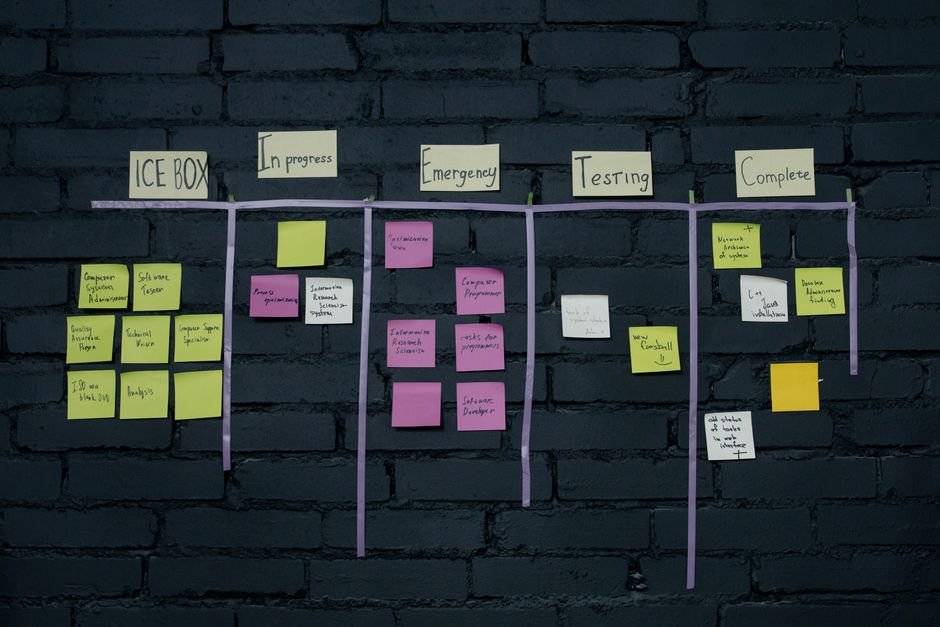
Kanban templates organize tasks into columns representing stages: To Do, In Progress, Review, Done. They’re ideal for continuous workflows where tasks move through predictable stages.
The best Kanban templates include swimlanes (grouping by project or priority), WIP limits to prevent bottlenecks, and color coding by task type or urgency. They should also connect to a master project database so you can filter tasks by deadline, assignee, or client.
Free Kanban templates are available in Notion’s template gallery, but they typically lack the database relations and automation that make them truly useful. Look for versions that include a project database, team member database, and task templates.
Scrum and agile sprint templates
If your team runs sprints, you need a template that separates the backlog from active sprint work. Good Scrum templates include a product backlog, sprint planning board, sprint board, and retrospective notes.
Advanced templates add burndown tracking, velocity calculations, and MoSCoW prioritization (Must have, Should have, Could have, Won’t have). These features align with agile project management principles and help teams plan capacity realistically.
For teams serious about agile, Scrum Board PRO ($30) offers a complete system with sprint boards, backlog management, bug tracking, sprint planning with burndown charts, and meeting notes—all pre-configured and ready in 10 minutes. It’s a one-time purchase with no monthly subscription, which makes it more cost-effective than dedicated project tools for small teams.
Hybrid and custom workflow templates
Many teams don’t fit neatly into Kanban or Scrum. Hybrid templates combine elements of both, often adding client management, content calendars, or resource planning.
These templates typically include a master task database with views filtered for different purposes: active tasks, upcoming deadlines, blocked items, completed work. They might integrate meeting notes, decision logs, or documentation alongside task tracking.
Hybrid templates work well for agencies, consulting teams, or product companies that need flexibility. Just ensure the template doesn’t become a dumping ground—every database and view should serve a clear purpose.
Free vs. paid Notion project management templates
Notion’s template gallery offers dozens of free project management templates. These are great for testing whether Notion fits your workflow, but they often lack depth.
Free templates typically include basic task databases with status, assignee, and due date properties. They might have 2-3 views but limited automation, no linked databases, and minimal customization.
Paid templates ($15-50) usually offer pre-built relations between multiple databases, advanced formulas for automatic calculations, detailed documentation, and ongoing updates. They save hours of setup time and include features you might not think to build yourself.
Consider free templates for simple projects or personal use. Invest in paid templates when you’re managing a team, running complex projects, or need specific methodology support like Kanban vs Scrum decision-making.
How to set up your Notion project management template
Once you’ve chosen a template, follow these steps to get it running for your team.
1. Duplicate the template to your workspace
Click the “Duplicate” button in the top right of the template page. This creates a copy in your Notion workspace that you can edit freely without affecting the original.
If you’re working with a team, duplicate the template into a shared workspace or team page so everyone has access.
2. Customize properties for your workflow
Review each database property and adjust it to match your needs. You might add properties for client names, project phases, estimated hours, or budget tracking.
Remove properties you won’t use—clutter makes databases harder to scan. Keep only what your team will actually fill in and reference.
3. Set up team members and access
Add your team members to the workspace and assign them to the “Person” property in your task database. This enables filtering by assignee and creates individual workload views.
Configure page permissions so team members can edit tasks but not accidentally modify database structure or key views.
4. Create views for different roles
Duplicate the default board view and create filtered versions for each team member, project phase, or priority level. Name views clearly: “Sarah’s Tasks,” “Q1 Projects,” “High Priority This Week.”
Pin frequently used views to the sidebar for quick access. Hide views that are only used occasionally to reduce visual clutter.
5. Import existing projects and tasks
Add your current projects to the project database, then create tasks linked to each project. If you’re migrating from another tool, export your data as CSV and import it into Notion’s table view.
Don’t try to import everything at once. Start with active projects and add archived work later if you need it for reference.
6. Test the workflow with your team
Run a pilot sprint or project using the template before rolling it out fully. Ask team members to flag confusing elements, missing views, or workflow friction.
Adjust based on feedback, then document your customizations in a “How to use this template” page so new team members can get up to speed quickly.
Ready-made Notion template
Scrum Board PRO
A complete agile project-management system in Notion: sprint board, backlog with MoSCoW priorities, bug tracker, sprint planner with burndown, meeting notes and reports. Set up in 10 minutes, no monthly subscription.
Comparing Notion templates to dedicated project management tools
Notion templates compete with tools like Asana, Monday.com, ClickUp, and Jira. Here’s when each makes sense.
| Feature | Notion Templates | Dedicated PM Tools |
|---|---|---|
| Setup time | 10-30 minutes with a good template | 1-3 hours to configure properly |
| Customization | Extremely flexible, can build anything | Limited to built-in features |
| Cost | $8-10/user/month + template fee | $10-25/user/month |
| Learning curve | Moderate; requires understanding databases | Low; designed for specific workflows |
| Integration | Limited native integrations | Extensive app marketplace |
| Documentation | Tasks and docs in one place | Usually separate tools |
Notion works best for small teams (under 20 people) who value flexibility and want to combine project management with documentation, wikis, and meeting notes. Dedicated tools win for large teams, complex dependencies, or workflows requiring deep integrations.
If you’re already using Notion for documentation, adding a project management template keeps everything in one workspace. If you need advanced features like resource leveling, critical path analysis, or portfolio management, dedicated tools are worth the investment.
Common mistakes when using Notion for project management
Even with a great template, these pitfalls can derail your setup.
Over-engineering your system
It’s tempting to add every possible property, formula, and relation. Resist this urge. Start simple and add complexity only when you hit a real limitation.
If team members are confused or tasks take longer to create than to complete, you’ve over-built. Simplify ruthlessly.
Not maintaining your databases
Notion databases require regular cleanup. Closed tasks pile up, completed projects clutter your views, and outdated information creates confusion.
Schedule monthly reviews to archive completed work, update project statuses, and remove unnecessary properties. Treat your Notion workspace like you would a physical office—tidy it regularly.
Ignoring mobile limitations
Notion’s mobile app is improving but still clunky for complex databases. If your team works primarily on mobile, test your template on phones before committing.
Create simplified mobile views with fewer properties visible, and use board or gallery views instead of tables for easier touch navigation.
Skipping documentation
A template is only useful if your team knows how to use it. Create a simple guide explaining your workflow, what each view shows, and how to create tasks or update statuses.
Embed this guide at the top of your project management page so it’s always visible to new team members or when someone forgets the process.
Maximizing your Notion project management template
Once your template is running, these practices keep it effective.
Use templates within templates
Create task templates for recurring work types: client onboarding, bug reports, content creation. Notion’s template button lets you insert pre-filled tasks with default properties, checklists, and descriptions.
This ensures consistency and saves time when creating similar tasks repeatedly.
Link to your project documentation
One of Notion’s strengths is combining tasks with documentation. Link each project to its brief, requirements, meeting notes, and deliverables.
This context lives alongside your task list, making it easier to understand priorities and make decisions without switching tools.
Automate with integrations
While Notion’s native automation is limited, tools like Zapier or Make can connect Notion to your other apps. Automatically create tasks from form submissions, sync calendar events, or post updates to Slack when project statuses change.
These integrations extend your template’s usefulness without requiring manual updates across multiple platforms.
Review and iterate regularly
Schedule quarterly reviews of your Notion setup with your team. What’s working? What’s ignored? What takes too long?
Your project management needs evolve as your team grows and projects change. Adjust your template to match current reality, not past workflows.
Finding more Notion templates and resources
Beyond individual templates, explore the broader Notion ecosystem for ideas and improvements.
Notion’s official template gallery is a good starting point, with free templates for various industries and workflows. Browse the “Project Management” category to see different approaches and borrow ideas.
Community creators on Gumroad, Etsy, and Notion marketplace sites offer specialized templates for specific industries or methodologies. Read reviews carefully—some are overhyped, but the best ones save significant setup time.
For teams following specific frameworks, look for resources on project management fundamentals to ensure your Notion setup aligns with best practices rather than just looking pretty.
Is a Notion project management template right for your team?
Notion templates work best for small to medium teams who value flexibility, want to combine project management with documentation, and don’t mind a moderate learning curve. They’re ideal for agencies, consultancies, product teams, and creative studios.
Skip Notion if you need enterprise-grade permissions, complex resource management, or deep integrations with engineering tools. Dedicated project management platforms handle those requirements better.
For most small businesses and freelancers, a well-chosen Notion template provides 80% of what expensive tools offer at a fraction of the cost—and keeps your projects, docs, and knowledge in one searchable workspace.
Frequently asked questions
Can you use Notion as a project management tool?
Yes, Notion works well for project management, especially for small to medium teams. Its databases, multiple views (Kanban, calendar, timeline), and ability to link tasks to projects, team members, and documentation make it flexible enough to replace dedicated PM tools. However, it lacks some advanced features like resource leveling or complex dependency tracking that enterprise tools provide.
Are Notion project management templates free?
Many Notion project management templates are free, available through Notion's template gallery or community creators. However, paid templates ($15-50) typically offer more sophisticated features like linked databases, automation formulas, advanced views, and better documentation. Free templates work for simple projects, while paid options save time for teams with complex workflows.
How do I choose between Kanban and Scrum templates in Notion?
Choose a Kanban template if you have continuous workflows where tasks move through predictable stages without fixed time boxes. Pick a Scrum template if you work in sprints with defined planning, review, and retrospective cycles. Kanban suits support teams, marketing, or ongoing operations, while Scrum fits product development and teams following agile methodologies.
Yes, duplicate the template into a shared Notion workspace and invite team members. They'll need Notion accounts to access it. You can control permissions to let team members edit tasks while restricting who can modify database structures or delete views. Notion's free plan allows unlimited collaborators for personal use, but team workspaces require paid plans.
What's the difference between Notion templates and dedicated PM software?
Notion templates are highly customizable and combine project management with documentation in one workspace, but require more setup and have limited native integrations. Dedicated PM software like Asana or Jira offers specialized features, extensive integrations, and is purpose-built for project workflows, but costs more and separates tasks from documentation. Notion works best for small teams valuing flexibility; dedicated tools suit larger organizations with complex needs.
How long does it take to set up a Notion project management template?
With a pre-built template, basic setup takes 10-30 minutes: duplicate the template, customize properties, add team members, and create your first few tasks. Full customization for your specific workflow might take 2-4 hours, including creating custom views, setting up automations, and documenting your process. This is significantly faster than building from scratch, which can take a full day or more.