Quick answer
- Create an OKR database with properties for objectives, key results, owners, timeframes, and progress percentages
- Use relations to link key results to parent objectives and rollups to auto-calculate objective progress
- Build filtered views by quarter, team member, or department to keep everyone aligned
- Add a weekly check-in template to update progress and flag blockers
- Review and archive completed OKRs each quarter to maintain a performance history
Small teams waste time juggling spreadsheets or paying for OKR platforms they barely use. Notion gives you the flexibility to track objectives and key results in one place, alongside your projects and documentation, without a monthly subscription per seat.
This guide walks you through building a practical Notion OKR tracking system that scales with your team. You’ll learn how to structure databases, automate progress calculations, and keep everyone aligned on what matters most.
Why Use Notion for OKR Tracking?
Notion works well for OKR tracking in small teams because it combines databases, documents, and collaboration in a single workspace. Unlike dedicated OKR tools that cost €10–30 per user per month, Notion’s free plan supports unlimited team members on its database features.
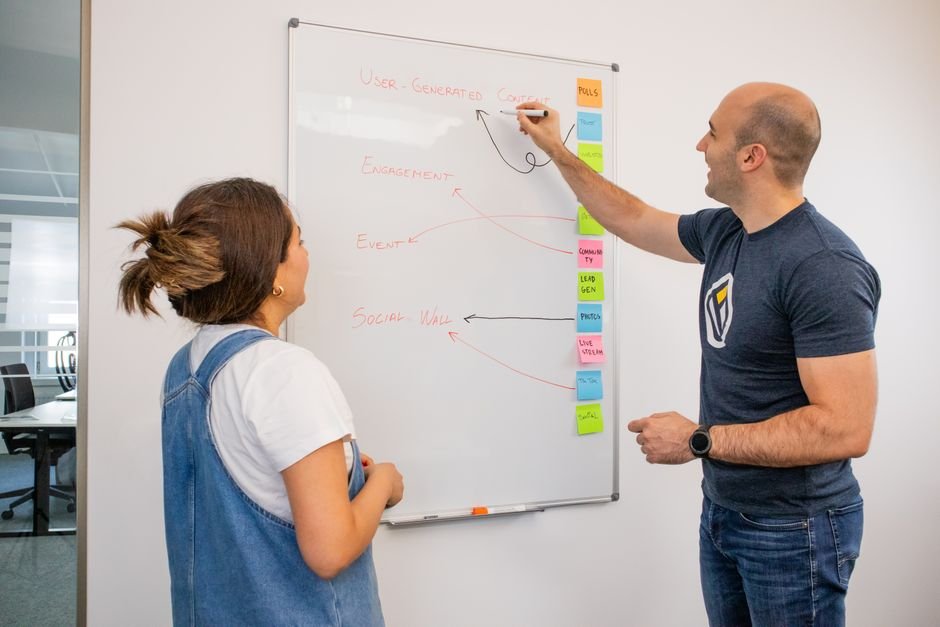
You can link OKRs directly to sprint boards, project trackers, and meeting notes, so goals stay connected to daily work. The database structure lets you filter by quarter, owner, or department, and rollup formulas automatically calculate progress from key results.
For teams already using Notion for project management, adding OKRs keeps everything in one place. If you’re comparing tools, read our guide on Notion vs Jira for small teams to see when Notion is enough.
What You Need Before You Start
Decide on your OKR cycle and structure. Most small teams run quarterly OKRs with 3–5 objectives per quarter. Each objective should have 2–4 measurable key results.
Identify OKR owners. Assign each objective to one person who will coordinate updates, even if multiple people contribute. This prevents confusion about who’s responsible for progress.
Choose your success metrics. Key results must be quantifiable: revenue targets, feature releases, customer acquisition numbers, or completion percentages. Avoid vague goals like “improve morale.”
Step 1: Create Your OKR Database
Create a new database in your Notion workspace. Open a blank page, type /database, and choose “Full page.” Name it “OKRs” or “Goals & Key Results.”

Add these essential properties:
- Type (Select): Choose “Objective” or “Key Result” to distinguish parent goals from measurable outcomes.
- Owner (Person): Assign responsibility to one team member.
- Quarter (Select): Label each OKR with Q1, Q2, Q3, or Q4 plus the year (e.g., “Q2 2024”).
- Progress (Number): Enter the current percentage completed (0–100).
- Target (Number): Set the goal number for key results (e.g., 50 for “50 new customers”).
- Current Value (Number): Track the actual number as it changes.
- Status (Select): Use “On Track,” “At Risk,” “Behind,” or “Complete.”
- Parent Objective (Relation): Link each key result to its objective.
Add a formula property to auto-calculate progress. Create a new property called “Auto Progress” and use this formula: if(prop("Target") > 0, round(prop("Current Value") / prop("Target") * 100), 0). This calculates percentage automatically from your current and target values.
Step 2: Structure Objectives and Key Results
Create your objectives first. Add a new entry, set Type to “Objective,” and write a clear, ambitious goal. Example: “Launch self-service onboarding to reduce support load.”
Add 2–4 key results under each objective. Create new entries, set Type to “Key Result,” fill in Target and Current Value, and use the Parent Objective relation to link each one to the objective you just created.
Use a rollup to calculate objective progress. In your Objectives, add a Rollup property that references the Parent Objective relation. Choose “Average” and point it at the Progress property. This shows the average completion of all linked key results.
For more on relations and rollups, check our tutorial on how to use Notion relations and rollups for project tracking.
Step 3: Build Views for Different Perspectives
Create a “Current Quarter” view. Duplicate your default table view, rename it “Current Quarter,” and add a filter for Quarter equals your active quarter. This keeps your team focused on what’s happening now.
Add a “By Owner” view. Create a new board view, group by Owner, and apply the same current-quarter filter. Each team member sees their own column of OKRs.
Build a “Objectives Only” view. Duplicate the table view, filter Type to show only “Objective,” and sort by Progress ascending. This gives leadership a high-level snapshot.
Add a “Behind Schedule” view. Filter Status to show only “At Risk” or “Behind.” Review this view weekly to spot problems early.
You can also create a gallery view with cards for each objective, showing progress bars and owner avatars. Experiment with what your team actually looks at.
Step 4: Link OKRs to Your Work
Relate OKRs to your task or project database. If you already track projects or sprints in Notion, add a Relation property in your task database that links to your OKR database. This shows which tasks contribute to which key results.
Add OKR context to your sprint board. When planning sprints, reference linked OKRs in task descriptions or meeting notes. This reminds the team why each feature matters.
If you’re running agile sprints, our guide on building a Notion workspace for agile teams shows how to connect goals to execution. For a complete sprint setup, Scrum Board PRO includes a backlog, sprint planner with burndown, and built-in goal tracking—set up in 10 minutes with no monthly subscription.
Embed OKR views in your team dashboard. Create a team homepage in Notion and use /link to page to embed your “Current Quarter” view as a synced block. Everyone sees live progress without digging through pages.
For inspiration, see our post on Notion dashboard ideas for small business owners.
Ready-made Notion template
Scrum Board PRO
A complete agile project-management system in Notion: sprint board, backlog with MoSCoW priorities, bug tracker, sprint planner with burndown, meeting notes and reports. Set up in 10 minutes, no monthly subscription.
Step 5: Set Up Weekly Check-Ins
Create a check-in template. Add a new page called “Weekly OKR Check-In Template” with three sections: “Progress Updates” (a table of contents linking to each objective), “Blockers,” and “Next Steps.”
Schedule a recurring meeting. Block 30 minutes every Friday (or Monday) to update OKRs. Each owner opens their objectives, updates Current Value and Status, and adds a comment explaining what changed.
Use the template for every check-in. Duplicate the template each week and fill it in during your meeting. Archive completed check-ins in a “Check-In Archive” page so you can review trends over time.
Add a “Last Updated” property. In your OKR database, add a “Last Edited Time” property. Sort views by this property to spot stale OKRs that haven’t been touched in weeks.
Step 6: Review and Archive Each Quarter
Schedule a quarterly review meeting. At the end of each quarter, gather your team to review final progress on all objectives. Mark completed key results as 100%, and change Status to “Complete” or “Closed.”
Capture learnings. Add a “Lessons Learned” text property to each objective. Write a sentence or two about what worked, what didn’t, and why. This builds institutional memory.
Archive the quarter. Create a new page called “Archived OKRs” and move your current-quarter database view there, or simply filter it out of your active views. Keep the data for annual reviews and performance conversations.
Draft next quarter’s OKRs. Use a “Planning” status for draft objectives. Involve your team in setting new key results based on what you learned. Copy successful structures and adjust targets based on past performance.
Common Pitfalls and How to Avoid Them
Too many OKRs dilute focus. Limit your team to 3–5 objectives per quarter. If you have more goals, prioritize or move lower-priority items to a “Future OKRs” backlog database.
Key results that aren’t measurable. “Improve customer satisfaction” is not a key result. “Increase NPS from 40 to 55” is. Always include a number you can track.
Forgetting to update progress. If your team ignores the OKR database for weeks, it becomes useless. Tie updates to an existing meeting (stand-up, sprint planning, or all-hands) so they become routine.
Treating OKRs as a to-do list. OKRs define outcomes, not tasks. If your key results sound like tasks (“Launch feature X”), reframe them as measurable impact (“Increase trial-to-paid conversion by 10% via feature X”).
Advanced Tips for Power Users
Use AI to draft OKRs faster. Notion’s AI can help you brainstorm key results or refine vague objectives. For a full workflow, read our guide on how to use AI to draft OKRs and track progress in Notion.
Add a roadmap view for product teams. If you’re tracking product OKRs, create a timeline view that shows key results as milestones. This aligns feature releases with strategic goals. See our Notion roadmap template for ideas.
Integrate with other Notion systems. Link OKRs to your client portal or editorial calendar to show clients or stakeholders how work connects to business goals.
Track dependencies between OKRs. Add a “Depends On” relation property to flag key results that rely on other teams’ objectives. This surfaces coordination risks early.
Build a company-wide OKR hub. Create a landing page with embedded views by department, a timeline of quarterly milestones, and links to past-quarter archives. This becomes your single source of truth for strategic progress.
When to Consider a Dedicated OKR Tool
Notion works well for teams up to 20–30 people who already use it for other workflows. If you need advanced features like cascading OKRs across multiple levels, mandatory check-in reminders, or executive dashboards with custom visualizations, dedicated tools like Lattice, Perdoo, or Profit.co might be worth the cost.
For most small teams, though, Notion’s flexibility and zero per-seat cost make it the better choice. You control the structure, and you’re not locked into a vendor’s workflow.
If you’re evaluating other tools, see our comparison of Notion vs ClickUp for kanban boards to understand trade-offs.
More Notion Resources
Explore more Notion setups in our Notion Templates category, including templates for goal tracking, project management, and team collaboration.
Frequently asked questions
Can I use Notion for OKRs for free?
Yes. Notion's free plan supports unlimited team members and includes databases, relations, and rollups—everything you need for OKR tracking. You only need a paid plan (starting around €8/user/month) if you want advanced permissions, version history beyond 30 days, or larger file uploads.
How do I automatically calculate OKR progress in Notion?
Use a formula property with this formula: if(prop("Target") > 0, round(prop("Current Value") / prop("Target") * 100), 0). This divides your current value by your target and multiplies by 100 to get a percentage. For objectives, use a rollup property that averages the progress of all linked key results.
Should I create separate databases for objectives and key results?
No. Use one database with a Type property (Select field) to distinguish objectives from key results. Then use a self-relation called Parent Objective to link key results to their objectives. This keeps everything in one place and makes rollups and filtering easier.
How often should I update OKRs in Notion?
Update key result progress weekly, ideally during a Friday check-in or Monday planning meeting. Update the Status property (On Track, At Risk, Behind) at the same time. Monthly updates are too slow to catch problems, and daily updates create busywork for most teams.
Yes. You can share a specific view or page with external stakeholders by clicking Share at the top right and generating a public link or inviting them as guests. Filter the view to show only high-level objectives or department-level progress, and hide sensitive properties like internal notes or owner details.
How do I link Notion OKRs to daily tasks?
Add a Relation property in your task or project database that links to your OKR database. When you create a task, select the relevant key result. You can then use a rollup in your OKR database to count how many tasks are linked, or filter your task board by OKR to see what's contributing to each goal.