Quick answer
- Use Notion's sprint board template for basic kanban-style sprint management
- Add a product backlog database with priority properties (MoSCoW or story points)
- Connect sprint planning and retrospective templates for full ceremony support
- Consider a paid all-in-one template if you need burndown charts and velocity tracking
- Link your sprint board to a team workload tracker to prevent over-commitment
Most Scrum teams waste hours cobbling together Notion databases for sprints, backlogs, and retros. You need a template that connects sprint planning, daily standups, and retrospectives without breaking when your team scales.
This guide reviews the best Notion templates for Scrum teams in 2026—free options, paid bundles, and what you actually need versus marketing fluff. We tested each for real sprint workflows, not just demo screenshots.
What Makes a Good Notion Template for Scrum
A proper Scrum template in Notion needs three core databases: a product backlog, a sprint board, and a retrospective log. Everything else—burndown charts, velocity trackers, meeting notes—is useful but secondary.
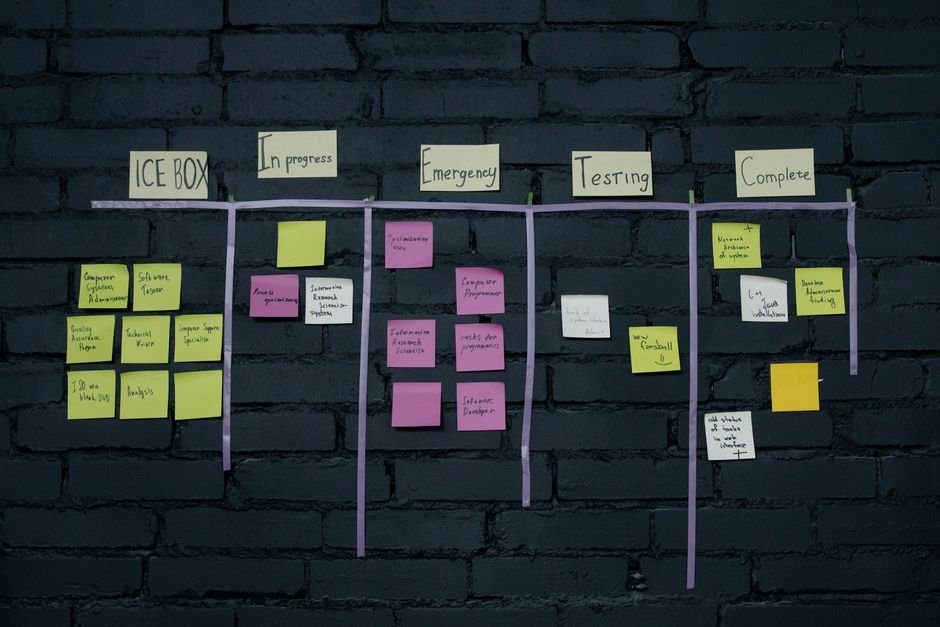
The backlog database should support prioritization. Look for templates with MoSCoW fields (Must-have, Should-have, Could-have, Won’t-have) or story-point properties. You’ll filter and sort stories constantly, so rigid structures slow you down.
The sprint board must link to the backlog. Avoid templates where you manually copy user stories into a separate sprint table. Notion’s relation properties let you pull backlog items into active sprints, so updates sync automatically.
Retrospective tracking matters more than most templates admit. Your retro notes should feed into action items that appear in the next sprint. If the template treats retros as isolated meeting notes, you’ll lose improvements sprint over sprint.
Finally, check whether the template includes views for different roles. Product owners need backlog grooming views; developers need task boards; Scrum masters need ceremony checklists. A single kanban board rarely serves everyone.
Notion’s Built-In Sprint Template (Free)
Notion offers a native “Sprint” template in its template gallery. It’s minimal: a kanban board with “To Do,” “In Progress,” and “Done” columns, plus a basic backlog table.
What it does well: The setup takes five minutes, and the interface is clean. If your team just needs a digital sticky-note board to replace Trello, this works out of the box.
What’s missing: No sprint planning views, no velocity tracking, no retrospective structure. You can’t easily see which stories belong to which sprint unless you manually add date properties and filters. It’s a starting point, not a system.
This template suits teams new to Scrum or running very short experiments. Once you hit sprint three or four, you’ll need to extend it heavily or switch to something more complete.
Red Gregory’s Agile Dashboard (Free)
Red Gregory publishes a free Notion template that includes a backlog, sprint board, and bug tracker. It’s widely recommended in Notion communities and gets regular updates.

The backlog uses a relation to pull items into sprints. You assign stories to a sprint name, and they automatically appear in the sprint kanban view. Story points and priority tags are pre-configured, so you can start grooming immediately.
The bug tracker is separate but relational. Bugs link to user stories, which helps during sprint reviews when you’re explaining why a feature isn’t done. The template also includes a simple roadmap view for quarterly planning.
Limitations: No built-in retrospective database or meeting-notes structure. You’ll need to add those yourself or use separate pages. Velocity and burndown tracking aren’t included—if you need those, check out our guide on how to track Scrum metrics in Notion.
Red Gregory’s template is ideal if you’re comfortable tweaking databases and want a free foundation to build on. It’s not plug-and-play for non-technical product owners.
Scrum Board PRO: All-in-One Paid Template
If you want sprint planning, backlog management, retrospectives, and reporting in one package, Scrum Board PRO ($30) covers the full agile cycle without a monthly subscription.
It includes a sprint planner with burndown views. You assign story points, and the template calculates remaining work per day. That’s rare in free templates, which usually skip burndown charts because they require formulas and rollups.
The retrospective database feeds action items back into the backlog. After each retro, you can tag action items and link them to the next sprint. This closes the improvement loop that many teams lose when using generic meeting-note templates.
Bug tracking and meeting notes are integrated. Sprint reviews, daily standups, and backlog refinement sessions all have linked templates, so your ceremony notes connect to the relevant user stories and tasks.
Setup takes about ten minutes—you duplicate the template, rename your first sprint, and start adding backlog items. If your team is already running Scrum and you’re migrating from Jira or another tool, this is the fastest path to a working Notion system. For more on when Notion replaces heavier tools, see Notion vs Jira for small teams.
Easlo’s Scrum Workspace (Paid)
Easlo offers a paid Scrum workspace (pricing varies; check their site for current rates) that emphasizes aesthetics and team onboarding. The template includes a sprint board, backlog, and a “Scrum guide” wiki.
The wiki explains each ceremony and artifact. If your team is new to Scrum, this built-in reference helps everyone understand sprint planning, daily standups, and retrospectives. You don’t need to link out to external guides.
The design uses toggles and callouts heavily. Each sprint has a collapsible section with goals, selected stories, and a daily log. It looks polished in demos, but some users find the nested toggles slow to navigate during live sprint planning.
No velocity or burndown tracking. Like many aesthetic-focused templates, Easlo prioritizes clean visuals over reporting. If you need metrics, you’ll have to add formulas yourself or combine this with a separate tracker.
This template works well for teams that value onboarding materials and prefer guided workflows. If you’re an experienced Scrum team, the extra explanatory content may feel like clutter.
Building Your Own Scrum Template in Notion
If none of the pre-made templates fit, you can build a custom Scrum workspace in about an hour. Our step-by-step guide on building a Notion workspace for agile teams walks through the database setup.
Start with two databases: Backlog and Sprints. Create a relation property in Backlog called “Sprint,” then link each user story to a sprint name. Add a linked view in your sprint page that filters the backlog by the current sprint.
Add properties for story points, priority, and assignee. Use a select property for priority (High, Medium, Low or MoSCoW) and a person property for assignments. Story points work best as a number property so you can sum them in rollups.
Create a retrospective database with action-item relations. Each retro entry should link to the sprint it reviews and optionally to backlog items that need follow-up. This turns retro insights into trackable work.
Building your own template gives you complete control, but it requires Notion fluency. If you’re not comfortable with relations, rollups, and formulas, start with a paid template and customize from there.
Ready-made Notion template
Scrum Board PRO
A complete agile project-management system in Notion: sprint board, backlog with MoSCoW priorities, bug tracker, sprint planner with burndown, meeting notes and reports. Set up in 10 minutes, no monthly subscription.
How to Choose Between Free and Paid Notion Templates for Scrum
Free templates save money but cost time. You’ll spend hours adding missing views, fixing broken relations, and building out ceremony structures. If your team bills hourly, that setup time often exceeds the cost of a $20–40 paid template.
Choose free if: You’re experimenting with Scrum, your team is under five people, or you enjoy tinkering with Notion databases. Free templates are also fine if you only need a backlog and sprint board—no burndown, no velocity, no retro tracking.
Choose paid if: You’re migrating from another tool and need to be productive immediately, you want built-in reporting (burndown, velocity), or you lack the Notion skills to build relational databases from scratch. For a deeper comparison, read free vs paid Notion templates: what you actually get.
Also consider whether you need integrations. Some paid templates include pre-configured automations (via Notion’s API or Zapier) for things like stand-up reminders or sprint-end reports. Free templates rarely include those hooks.
Connecting Your Scrum Template to Other Notion Workflows
Scrum doesn’t exist in isolation. Your sprint work often ties to roadmaps, team capacity, and broader project portfolios. The best templates make these connections easy.
Link your sprint board to a workload tracker. If you’re managing multiple projects or a remote team, knowing each person’s capacity prevents over-commitment. Our guide to building a Notion workload tracker shows how to roll up sprint assignments into a weekly capacity view.
Connect sprints to your project-management hub. If you use Notion for all projects—not just Scrum—create a master projects database and relate each sprint to a parent project. This helps product owners see how sprints ladder up to quarterly goals. See best Notion templates for project management for multi-project setups.
Use a decision log for architecture and scope changes. When your team makes a big technical decision or cuts a feature mid-sprint, document it in a decision log linked to the sprint. This creates an audit trail for retrospectives and future planning.
Common Pitfalls When Using Notion for Scrum
Notion is flexible, which means it’s easy to over-engineer your Scrum setup. Here are mistakes we see in most first-time templates.
Too many databases. Some templates create separate databases for epics, stories, tasks, subtasks, and bugs. Unless you’re managing a 20-person team, this complexity slows you down. Start with a single backlog database and use properties to distinguish item types.
Ignoring mobile experience. Notion’s mobile app is improving, but nested toggles and complex board views don’t work well on phones. If your team updates tasks from mobile during standups, test your template on a phone before rolling it out.
No onboarding doc. Even if your template is intuitive to you, new team members need a quick-start guide. Add a “How to use this workspace” page that explains your naming conventions, priority tags, and where to find sprint goals.
Also, don’t obsess over making Notion look like Jira. If your team wants Jira’s exact feature set, use Jira. Notion’s strength is flexibility and simplicity—lean into that instead of replicating another tool’s UI.
Automating Scrum Workflows in Notion
Notion’s built-in automations (as of 2026) can handle basic Scrum tasks like moving cards between columns or updating status fields. For more advanced automation—like posting sprint summaries to Slack or generating burndown charts—you’ll need Zapier, Make, or a custom API script.
Automate sprint kick-off checklists. Use a button with a template to create a new sprint page, pre-filled with ceremony dates and a linked backlog view. This ensures your team doesn’t forget planning or retro meetings.
Set up reminders for standups and reviews. Notion’s reminder feature works on a per-page basis, so add a recurring task in your sprint page for daily standups. Alternatively, integrate with calendar tools or use an AI scheduling assistant to coordinate across time zones.
Export sprint data for leadership reports. If you need to report velocity or completed story points to stakeholders, use Notion’s API to pull data into a spreadsheet or BI tool. Most paid templates don’t include this, so plan for manual exports or custom scripts.
When Notion Isn’t Enough for Your Scrum Team
Notion works brilliantly for small to mid-sized Scrum teams (2–15 people), but it has limits. If you’re managing complex dependencies across multiple teams, Notion’s database relations get messy fast. In that case, check out our guide to tracking dependencies in Notion or consider whether a tool like Jira is a better fit.
Notion also lacks native time tracking and detailed permissions. If you bill clients by the hour or need field-level permissions (hiding budget data from some team members), you’ll need third-party integrations or a different tool.
That said, for most small teams running two-week sprints with a single product backlog, Notion is more than enough. The real question is whether you want to invest time building a custom system or pay for a template that works on day one.
Getting Started with Your Notion Scrum Template
Pick a template—free or paid—and run one sprint as a test. Don’t customize anything yet. Use it exactly as designed, note what feels clunky, and adjust after your first retrospective.
Invite your team to a template walk-through. Spend 15 minutes showing everyone how to add tasks, update statuses, and find sprint goals. If you skip onboarding, people will default to Slack threads and email instead of updating Notion.
Link your template to daily habits. Post a standup prompt in Slack that links directly to today’s sprint board view. Make it easier to update Notion than to skip it.
Finally, revisit your template setup every few sprints. As your team grows or your workflow evolves, you’ll find new databases to add or old views to archive. Notion’s flexibility is an advantage here—just don’t let “improving the template” become a procrastination task that delays real work.
For a deeper dive into running the full Scrum cycle in Notion—from backlog grooming to retrospectives—read our guide on how to run Scrum in Notion.
Frequently asked questions
Can I use Notion for Scrum with a free account?
Yes. Notion's free plan supports unlimited databases, relations, and views—everything you need for Scrum. The main limitation is file upload size (5 MB per file on free vs 5 GB on paid), which rarely affects sprint boards or backlogs. If you're a team of more than 10, you'll need a paid team plan for collaboration features.
Do Notion Scrum templates include burndown charts?
Most free templates don't include burndown charts because they require formulas and manual updates. Paid templates like Scrum Board PRO often include burndown views using rollups and progress bars. You can also build your own by creating a formula property that calculates remaining story points per day.
How do I migrate my Jira backlog to a Notion Scrum template?
Export your Jira backlog as a CSV, then import it into Notion using the "Import" option in the database menu. Map your Jira fields (story points, priority, assignee) to matching Notion properties. You'll need to manually recreate sprint relations and any custom workflows, which typically takes a few hours for a mid-sized backlog.
Can I track multiple Scrum teams in one Notion workspace?
Yes. Create a master Backlog database with a "Team" select property, then filter views by team name. Each team gets its own sprint board page with filtered views of their backlog items. This works well for up to three teams; beyond that, consider separate workspaces to avoid database clutter.
What's the difference between Scrum and Kanban templates in Notion?
Scrum templates include sprint planning, time-boxed iterations, and retrospective structures. Kanban templates focus on continuous flow with WIP limits and no fixed sprint cycles. If your team works in two-week sprints with defined ceremonies, use a Scrum template. For ongoing support or maintenance work, Kanban is simpler. See our comparison of Kanban vs Scrum methodologies for more.
How often should I update my Notion Scrum template?
Update task statuses daily (during standup), groom the backlog weekly, and review your template structure every 3–4 sprints. Don't tweak the template mid-sprint unless something is broken—most adjustments should come out of retrospectives, not gut feelings during busy weeks.