Customer Relationship Management (CRM) is a system that helps businesses manage interactions with current and potential customers. It can be used to store customer data, track customer interactions and sales, and manage customer service.
CRM is a system that helps businesses manage and analyze customer interactions and data throughout the customer lifecycle, with the goal of improving customer relationships and driving business growth.
How CRM Software Can Help Your Grow Your Business
Some of the ways that CRM can help businesses grow include:
Improve customer relationships: By using CRM, businesses can gain a better understanding of their customers’ needs and preferences, which can help them build stronger, more meaningful relationships.
Increase sales: By tracking customer interactions and sales, businesses can identify opportunities to upsell and cross-sell products and services.
Improve customer service: By storing customer data in a central location, businesses can provide faster, more personalized service to their customers.
Increase efficiency: By automating tasks and processes, CRM can help businesses save time and reduce the risk of errors.
Enhance data analysis: CRM systems can collect and analyze data from various sources, giving businesses valuable insights into customer behavior and preferences.
Better marketing: CRM can help businesses segment their customer base and create targeted marketing campaigns, which can help increase customer loyalty and drive business growth.
Enhanced productivity: CRM can help streamline and automate various business processes, such as sales and marketing, which can help increase efficiency and productivity.
Better decision making: By analyzing customer data and trends, businesses can make more informed decisions about their marketing, sales, and overall business strategy, which can help drive growth.
Overall, CRM can be a powerful tool for helping businesses better understand their customers, improve their relationships with them, and drive growth.
India soft-launched Open E-Commerce Network ONDC as the government tries to end the dominance of U.S. companies Amazon.com and Walmart in the fast-growing e-commerce market.
Alphabet Inc’s Google is in talks with the Indian government to integrate its shopping services with the country’s open e-commerce network ONDC, two sources familiar with the matter told Reuters.
India soft-launched its Open Network for Digital Commerce (ONDC) late last month as the government tries to end the dominance of U.S. companies Amazon.com and Walmart in the fast-growing e-commerce market.
The government estimates the Indian e-commerce market was worth more than $55 billion in gross merchandise value in 2021 and will grow to $350 billion by the end of this decade.
ONDC Chief Executive T. Koshy told Reuters that Google was one of many companies it was in discussions with to be associated with the project.
Google in Talks to Join India’s Open E-Commerce Network ONDC
Google’s talks follow the success of its payments business because of the government’s initiative for financial transactions, the Unified Payments Interface (UPI), said one of the sources, both of whom declined to be identified as they were not authorised to discuss the matter with the media.
Google’s existing shopping business works solely as an aggregator of listings online and doesn’t carry out any order fulfilment like delivery, which the likes of Amazon do.
A Google spokesperson declined to comment on whether it was in talks with the government.
“We remain committed to focus on the enablement of small and medium businesses to leverage digital for deeper discovery and payments capabilities with Google Pay,” the spokesperson said, referring to its payments service.
E-commerce Market
Partners of the ONDC project, which currently includes the likes of Indian fintech firm Paytm, will show listings from each other on their platforms in search results. The government’s aim is to level the playing field by reducing the cost of doing business for any seller who wants to list their products online.
Some industry executives, however, have raised concerns over how listings from different sellers will be prioritised.
“The logic would be that the highest sellers/best rated sellers will probably get displayed first, which means it will not be a level-playing field,” said Mahesh Narayanan, a former head of Google’s mobile ads business in India.
The ONDC programme aims to join 30 million sellers and 10 million merchants online, and cover at least 100 cities and towns by August.
Caesar Sengupta, the chief executive of financial technology startup Arbo Works who played a critical role in establishing Google Pay in India, said he sees big potential with ONDC.
“One thing ONDC will definitely need is a consumer player to drive adoption with the masses,” he said. “You may remember that UPI had only 17 million transactions per month before Google Pay launched and the graph thereafter is a hockey stick.”
The Facebook algorithm | You’ve got to love it; you’ve got to understand how the Facebook Algorithm changes to successfully market your Business on the world’s largest social network.
Fact: The average organic Facebook Page post sees just 0.07% engagement. To bump that up for your brand, you’ve got to learn how to signal the Algorithm.
You want it to know that your content is valuable, authentic, and worth serving in your followers’ feeds.
Why Does Facebook Algorithm Change?
Algorithms are used on social media to sort content in a user’s feed. With so much content available, it’s a way for social networksto prioritize content they think a user will like based on several factors.
As a marketer, that may sound wonderful as it gets your content in front of the right people. But be warned, social media algorithms are by no means perfect.
The purpose of an algorithm is to filter out irrelevant content or content that’s not high quality. This puts your content at risk of being buried or hidden from feeds if it does not fit the criteria.
Plus, as Google introduces a new ranking signal into the mix – page experience – it’s vital that you brief yourself on core web vitals to ensure your content gets seen by bots and users.
As a fallible system, social networks regularly tweak their algorithms to improve user experience, which is the case with the Facebook algorithm.
The solution?
Ensure your content is high quality, relevant and appealing while keeping an eye on algorithm changes to see if you need to tweak your social media strategy.
The Facebook News Feed Algorithmwas created so that the social media platform shows users more exciting content and keeps them on the platform longer. So naturally, the Algorithm values what users value, and that is:
“Meaningful, informative stories”;
“Accurate, authentic content”; and
“Safe, respectful behaviour.”
The Facebook Algorithm learns from individual user behaviour, so everyone’s News Feed looks different. It goes through four steps to determine which pieces of content are most important to you and how they should arrange your News Feed.
Facebook Newsfeed Page
It focuses mainly on 4 steps
Step 1: Taking inventory
All of the content available on the platform Facebook calls the “inventory”: posts from your friends, pages you like, groups you have joined, etc.
The Algorithm looks at all the content that could show up on your newsfeed, meaning posts created by your friends and family, ads, and posts from the pages you follow.
Step 2: Looking at signals
These are divided into two groups, passive and active, depending on the type of metrics. In short:
Passive signals are those you can’t click, such as viewing time, posting time, etc.
Active signals are actions that promote engagement, e.g. likes, shares, comments, and replies (the Algorithm attributes more weight to them).
The active response adds weight to engagement.
The significant ranking signals that you should consider are:
engagement
relationships (who users interact with)
content type
and recency (internet connection, when the post was posted, what the current time is)
The Facebook Algorithm observes your behaviour and figures out what you like based on the signals you provide.
For example, if you want to shop in the afternoons and react to more branded posts during that time, Facebook will use that as an indicator to surface more branded posts.
The Algorithm knows your preferences aren’t set in stone, so it is continuously learning from your behaviour and looking out for signals that indicate your priorities have changed.
Step 3: Making predictions
Each signal is then used to make predictions. Let’s say you love posts from your gardening group, specifically how-to videos that show you how to trim your leaves or make compost. The Facebook News Feed Algorithm will use those signals to make predictions about how relevant the content is to you.
It will try to figure out how likely you are to comment on something, like something, read the caption, watch the video, or enjoy the story.
The Algorithm does that by analyzing your past behaviour (what content types and subjects you’ve interacted with) and conducting surveys with questions like, “How enjoyable did you find this post?”
Facebook social media market share
Step 4: Scoring the content
After all that, the Algorithm gives each piece of content a score. Content with higher scores is shown at the top of your News Feed.
Why does the Facebook algorithm play such an important role in Business?
It’s probably one of the most critical (digital) factors you don’t have control over that decides if your content gets noticed and your social media strategy is successful.
If you ignore the Facebook algorithm, it might negatively impact the organic reach of your posts. As a result, they will perform poorly, and you will wonder what the cause is.
The beauty of the Kanban system is that it works in any context. It helps you visualize your work and ensure it’s all moving in the right direction, whether you’re running a marketing campaign, planning a product launch or even organizing a party. It’s a quite handy tool.
So, you must know What is a Kanban Board and How to Use Kanban Board?
What is Kanban Board?
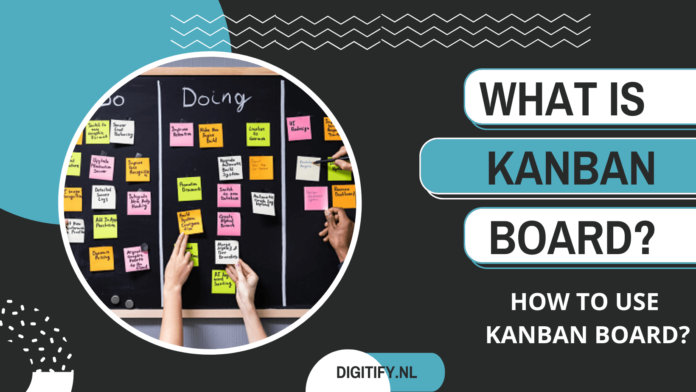
A Kanban Board is an agile project management tool designed to help visualize work, limit work-in-progress, and maximize efficiency (or flow). “Kanban” is the Japanese word for “visual signal.” If you work in services or technology, your work is often times invisible and intangible. It helps make your work visible so you can show it to others and keep everyone on the same page.
It can help both agile and DevOps teams establish order in their daily work. It uses cards, columns, and continuous improvement to help technology and service teams commit to the right amount of work, and get it done!
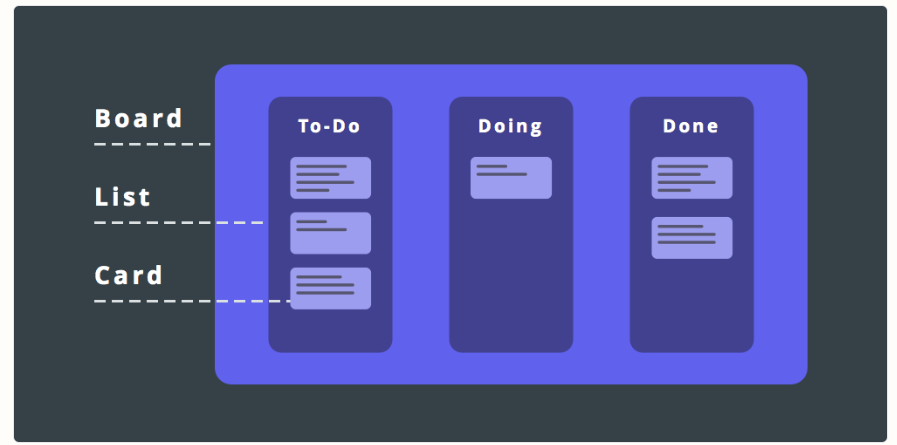
Basic representation of Kanban Board
Benefits of Kanban Board
Kanban at its core is summarized by the premise: stop starting, start finishing. The entire team’s focus is on getting to “done” for the tasks in progress.
Shorter cycle times can deliver features faster
Responsiveness to change: When priorities change very frequently, it is ideal
Balancing demand against throughput guarantees that most the customer-centric features are always being worked
Requires less organization and fewer room set-up changes to get started
Reducing waste and removing activities that don’t add value to the team/department/organization
Rapid feedback loops improve the chances of more motivated, empowered, and higher-performing team members
These boards increase team productivity
Elements of a Kanban Board
David Anderson established that these boards can be broken down into five components:
Visual Signals — One of the first things you’ll notice about a kanban board are the visual cards (stickies, tickets, or otherwise). Kanban teams write all of their projects and work items onto cards, usually one per card. For agile teams, each card could encapsulate one user story. Once on the board, these visual signals help teammates and stakeholders quickly understand what the team is working on.
Columns — Another hallmark of the kanban board are the columns. Each column represents a specific activity that together compose a “workflow”. Cards flow through the workflow until completion. Workflows can be as simple as “To Do,” “In Progress,” “Complete,” or much more complex.
Work In Progress (WIP) Limits — WIP limits are the maximum number of cards that can be in one column at any given time. A column with a WIP limit of three cannot have more than three cards in it. When the column is “maxed-out” the team needs to swarm on those cards and move them forward before new cards can move into that stage of the workflow. These WIP limits are critical for exposing bottlenecks in the workflow and maximizing flow. WIP limits give you an early warning sign that you committed to too much work.
Commitment point — Kanban teams often have a backlog for their board. This is where customers and teammates put ideas for projects that the team can pick up when they are ready. The commitment point is the moment when an idea is picked up by the team and work starts on the project.
Delivery point — The delivery point is the end of a kanban team’s workflow. For most teams, the delivery point is when the product or service is in the hands of the customer. The team’s goal is to take cards from the commitment point to the delivery point as fast as possible. The elapsed time between the two is the called Lead Time. Teams are continuously improving to decrease their lead time as much as possible.
A kanban board with these five elements will undoubtedly set your team up for success.
Kanban Board Stages of work.
How to Use Kanban Board Explained in 5 easy steps:
Step 1: Visualize your workflow
To create a Kanban Board, get a whiteboard, then break down the flow of work from the moment you start it to when it’s finished into distinctive steps and draw a column for each.
Step 2: Identify the types of work you do
Decide what kinds of work items you are usually working on. These may be, for example, customer orders, support requests, or maintenance tasks. Assign a distinctive color to each of them, and get a bunch of sticky notes in these colors.
Step 3: Write down tasks on cards and place them on the board
Write down each thing you are working on on a separate color-coded sticky note, and put it onto the board into the respective column. The order of cards in each column should represent their relative priority, with the most urgent ones at the top.
Step 4: Start working with your Kanban board
Work on tasks starting with the ones at the top. When a task is ready to be moved to the next column, place it at its bottom. Such a method of working will help to maintain a high flow of work on your board.
Step 5: Improve the flow of work
Kanban is all about maintaining a high and consistent flow of work. With your board, you should be able to see the overview of work status and instantly identify any problems or bottlenecks. No work item should lag behind, and columns should not be overloaded with tasks. The most straightforward technique to ensure consistent flow is limiting work in progress.
Conclusion
Create boards for your next projects, add lists and labels that fit your workflow, bring in all of your tasks, and give it a try. Customize until everything feels just right. It might take a bit of time, but once you have your board title, list names, and card formats in place, you’ll be ready to tackle your first task. And before you know it, you’ll be using Kanban boards as much as I do.
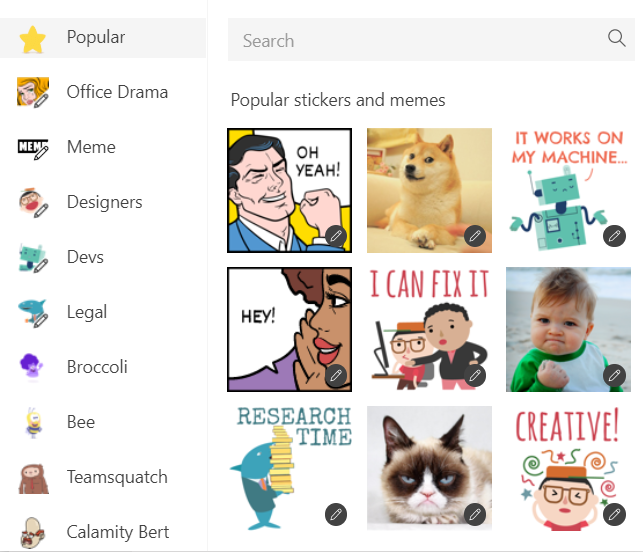
Microsoft Teams allows you to share personalized stickers and GIFs while chatting in Teams with your colleagues.
And, what is better than starting your day more enjoyable with exciting built-in features in Microsoft Teams begins with… emojis, Gifs, and Stickers! You can learn how to get started in this post.
Send Emojis, Gifs & Stickers in Microsoft Teams
In the chat section of Microsoft Teams, you may use emoticons, GIFs, and stickers!
Send Emojis in Teams
To send an emoji, first:
In the menu bar beneath the chatbox, click the emoji symbol.
Emojis, Gifs & Stickers in Microsoft Teams
Select an emoji from the gallery, or you can also use a keyword search to discover something particular.
After inserting the desired emoji, click Send, and you’re done!
Send GIFs in Teams
Select the GIF option beneath the chatbox instead.
Press GIF at the bottom
Search for the desired GIF
Press send
An example of a GIF menu option:
Send GIFs in Teams
Send Stickers in Teams
Stickers are used similarly;
Select the Stickers option beneath the chatbox instead.
If you are planning to set up a website or already have one soon, you first need to set up a Backup of the website after creating one.
Whether you are a prominent corporate corporation or a start-up company, the digital presence in the form of a website is essential for improving an organization’s credibility.
Why Backup WordPress Website?
Just like having a copy of data in a pen drive or on the drive, a Website backup may help you recover the lost data. There could be many reasons for losing data, especially if you have WordPress.
No, no, no, WordPress is not unsafe, but it is more vulnerable as compared to other platforms if security measures are not taken properly.
Having website security solutions is critical to defending your site from hackers. Backups are, in many situations, a website backup is a life saver.
Updraft Plus is quite popular among WordPress Developers; with more than 3 million + downloads, it is the leading website backup plug. Rating of 4.8 based on the 5,680 votes.
Updraft Plus
With a Freemium account, Updraft allows you to store website backup at least in one place, Google Drive, Dropbox, FTP or one drive.
Automate the backup process: Schedule, Set-up time and the number of backups you want to run.
Auto set deletion of WordPress backup from updraft plugin.
Another good plugin which getting popular nowadays. With 90,000+ WordPress Installations and a Rating of 4.3 based on the 142 votes makes, it a trustable plugin.
The automatic backups option is available.
Simple migration
Backup testing
Dashboard
Link with cloud services which don’t put a load on a website
Backup Scheduling
BlogVault
Blog Vault has a variety of pricing, below is the pricing for a basic plan. For Plus and advance plan, please refer to the pricing on the website.
Plan
Price in $ (inc. Vat)
WordPress Installation
Personal
$89/year
1 Site
Small Business
$199/year
Up to 5
Developer
$499/year
Up to 20 Sites
Agency
Contact Sales
More than 20 Sites
Blog Vault Pricing
Backup Guard
Like all other backup plugins, Backup Guard provides WordPress backup and security solutions. With Backup Guard, you can Backup, restore, and migrate your site. Backup Guard with 60,000+ Active Installations and a Rating of 4.5 based on the 994 votes on the WordPress site makes this a Dependable plugin. *Jetpack recommends installing the latest version of the plugin.
Unlimited backups
Backup on device
Restore Backup
Download backup on the system
Upload backup to Dropbox G Drive, Amazon S3, Box, iCloud, OneDrive & SFTP/FTP.
Automatic Backup
Requirements
Freemium: PHP 5.3.3, Zlib, WordPress 3.8
Premium PHP 5.3.3, zlib, curl, WordPress 3.8
Dropbox SDK & Backup Guard requires a 64-bit system
Unlimited Websites (Lifetime Usage) All Gold Features +
BlackupGuard Pricing
Duplicator
Duplicator is the most accessible plugin to work with. 1+ Million Installations with a Rating of 4.9 based on the 3,395 votes.
Migrate, copy, move or clone a site to another site.
Transfer WordPress site from one host to another host.
Store on local Computer, Dropbox, Google Drive, OneDrive, Amazon S3 and FTP/SFTP.
Duplicator
Plan
Price in $ (inc. Vat)
WordPress Installation
Gold
$549/year
Lifetime Updates & Support * Unlimited Site Licenses
Business
$149/year
1 Year of Updates & Support Unlimited Site Licenses
Freelancer
$89/year
1 Year of Updates & Support 15 Site Licenses
Personal
$69/year
1 Year of Updates & Support 3 Site Licenses
Duplicator Pricing
The downside of the Duplicator plugin is there is no option to Automate the Backup process. Still, it is a great plugin to take manual backups with less Hassel. Using other plugins (mentioned in this blog) with the Automatic Backup option is recommended.
Recommend good plugins that aren’t on the blog in the comment box.
Have you ever wondered why some of your Facebook posts gain many likes, shares, and comments, but others seem to get a few engagements from your most loyal followers? It all boils down to the Facebook News Feed Algorithm.
Every Facebook user sees a unique news feed molded by the Facebook News Feed Algorithm according to their past behaviour and the kind of content they interact with. As a result, it becomes difficult to reach all your followers with a single post. This guide will give you the tricks to work with the Facebook news feed algorithm.
10 Proven and Tested Hacks to Work With The Facebook News Feed Algorithm in 2023
Understand what your audience wants to see
Facebook indicates it prioritizes content that is “meaningful and informative.” So what does that mean, exactly?
Meaningful: Facebook Stories the user will want to talk to friends and family about or spend time reading (based on past behaviour) or use in the marketplace, and videos they want to watch.
Informative: Content someone will find “new, interesting, and informative,” which will vary by user.
Understanding what will be meaningful and informative to your specific Facebook audience means you need to understand their unique interests and behaviours. That means you need to do some audience research.
Research your target audience.
Choose the best time to post on Facebook
Knowing when your posts tend to perform best would be very helpful. However, because so many variables are involved, it’s difficult to predict precisely how things will play out.
A good idea to determine the best time to post on your page is to analyze your Facebook Insights. Consider when your target demographic is most likely to be online and only post during these times.
Be Regular
There is one thing that no social media platforms algorithms like – irregularity. So if you only publish content once in a while, don’t count on having a high organic reach.
However, remember that consistency and quality are key to social media success.
This isn’t easy to achieve – planning all of your content and keeping it valuable is challenging. Nevertheless, we know the solution.
It would help if you took advantage of social media management tools available on the market. They can streamline your content management process a lot. Most of them provide an intuitive interface with a drag-and-drop calendar that makes scheduling enjoyable.
Be consistent with your content.
Make video a cornerstone of your content strategy
You’ve heard it a million times before, and we’ll repeat it: it’s now or never for marketers to hop on the video bandwagon.
The new Facebook News Feed algorithm noted that video content drives higher engagement and interactions from users compared to any other type of content on the platform. Meanwhile, a recent video ranking update further explains how crucial native video is.
Perfect for starting conversations and keeping your fans’ eyes glued to the page, marketers of all shapes and sizes can incorporate video on the Facebook news feed. You don’t necessarily need to create big-budget commercial content, either.
Don’t try to manipulate the Facebook News Feed Algorithm
This post isn’t about how to manipulate the algorithm. This post is about understanding how the Facebook news feed algorithm works so you can learn what Facebook considers valuable for its users.
You have to do the work to figure out how those prevailing principles apply to your specific audience. Trying to manipulate the Facebook news feed algorithm to get more distribution than your content merits based on those ranking signals is a big no-no.
This might include, for instance, paying for engagement or comments or engaging in other black-hat strategies to manipulate reach. Facebook considers this spam. Don’t do it.
The simple message here:
Work with the algorithm, not against it.
Don’t use clickbait and engagement bait
In 2014 and 2017, new updates focused on using bounce rate as an indicator of clickbait and spammy links.
Clickbait is content that is exaggerated, over-sensationalized, and borderline spam. It promises a result but doesn’t deliver (e.g. headlines like “The one fruit you need to stay young”, nobody does a Facebook search like this). Engagement bait, however, uses captions or photos that contain phrases like, “Like this, if you like dogs better, share this if you like cats better.”
Encourage employees and brand advocates to push your content
The key to overcoming the Facebook news feed algorithm has been under your nose since you started marketing on the platform.
Employee advocacy has never been more relevant than it is today. Since Facebook prioritizes content from friends and family over businesses, this is the perfect time to start your employee advocacy program.
Encouraging your team to share your content with their networks instantly amplifies your reach. Also, since the posts come from friends and family instead of your brand, people will be 16 times more likely to read them.
Activate the audience
According to the algorithm, posts that spark conversations among users can bump your content up in the rankings. So making posts that prompt people to stop scrolling and start engaging with one another should be your goal. Think about conversation starters, ask questions, inspire, or educate.
Here are many possible ways to get people talking.
Reply to customers’ comments and give your brand a personal touch
Getting back to your customers’ questions and replying directly to comments helps build your business image since it gives your brand a personal touch.
A user’s response to one of your posts is the first step toward creating the type of worthwhile engagement we discussed above. By replying to their comments, you inform the Facebook news feed algorithm again that your content is relevant to users. As a result, more of your company’s content will appear in their news feed.
Aim to get on people’s “Favorite” lists
In April of 2021, they added a new feature that allows users to take more control of their Facebook News Feed through the Favorite list. Users can now place 30 friends and pages they follow on their Favorite List, so they see content from those friends and pages first. And according to the Facebook news feed algorithm, you got to be on that list!!!
Conclusion
The Facebook algorithms change from time to time, and it gets difficult to cope with each and every aspect of the algorithm. But the above hacks are tried and tested ways to align with the new algorithm in 2023. Follow the hacks to take your Facebook page to new heights.
Trello offers a popular tool for personal productivity and team collaboration. The platform gives users more than 25 million users worldwide. And by learning how to use trello for small business you can deliver your work in a powerful way.
What is Trello?
Trello is a free organisation, planning and project management tool. It is based on a ‘kanban’ board, which is a visual way of managing the stages and tasks of a project from start to finish. It can help you to see exactly what you need to do and how much of that task is complete at any one time. If you like lists and being organised, you will love it, if that’s not really your thing, give it a go because it might be a game changer!
You can sort all kinds of information, such as:
What’s being worked on?
Who’s working on what?
What progress the project is making
Advantages of Using Trello for Project Management
Trello can be used immediately after signing up. It offers a free sign-up, after which you get access to almost all of its features. It is also a premium service, though most of the important features are available with the free option.
Trello follows the Kanban system, which is a popular methodology used to achieve lean management. This means that you can also achieve lean with it.
It’s mobile-friendly. Its interface looks very similar to a mobile application and is very user-friendly. It also has a very popular mobile application that has the same features available in the desktop application.
All project-related items can be seen on one page.
Adding new members, creating issues, and assigning them is easy to do.
Significant Elements of Trello
It was designed to be intuitive so that nearly anyone can use it, even with limited technical skills. If you’re logging in for the first time, you’ll encounter these elements:
A virtual bulletinboard – a place to track the team’s progress, project, or workflow. It consists of columns to organize tasks and subtasks of the project, to-do lists, and collaboration with colleagues.
Lists – a set of columns to group subtasks of the project.
Cards – the portal for your various tasks. You can move them from column to column, add due dates, assign them to other team members, and leave notes for each other.
Assignments – the tasks allocated to specific team members.
Timelines allow you to see the due date of all of your projects.
Power-Ups – the plugins used to add additional functionality to Trello.
Trello Board
The collaboration tool provides you a space called boards, where you can organise all your tasks. You can create a board for each project and assign tasks to your teammates.
Each board consists of cards and lists. They are all about the assigned tasks that work in a process like step after step. It is highly recommended if you create a separate board for each project as you can view one board at a time.
How to Use Trello board?
Here are the steps you can follow to create a trello board:
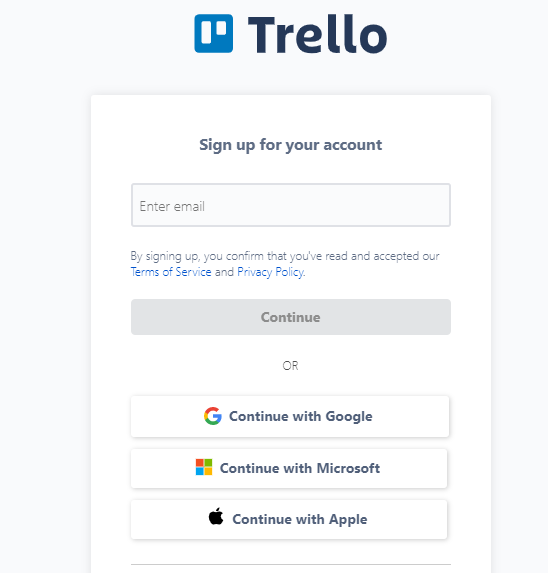
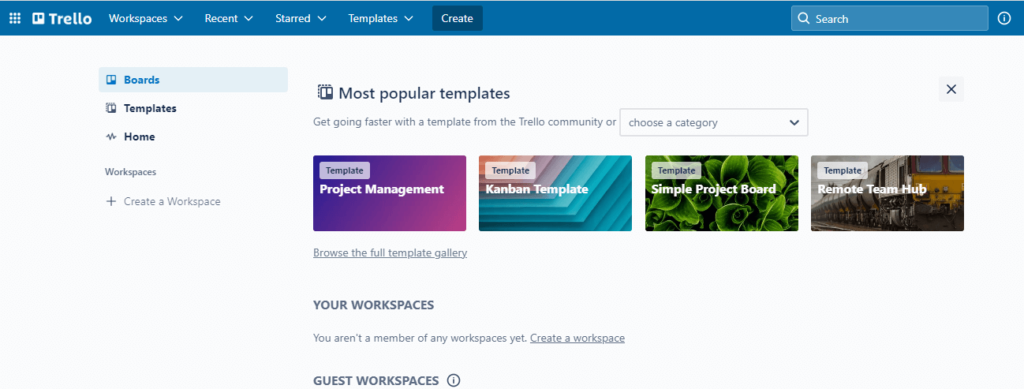
Step 2: As you login to your account, you will see a trello home screen like below.
Home Page
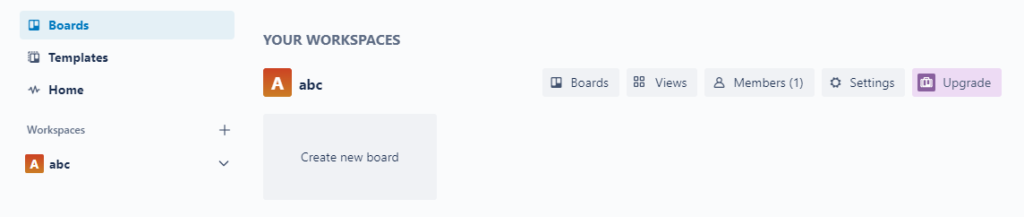
Step 3: Inside “Workspaces”, you will see a rectangle shaped box named as “Create new board”. Click “Create new board”.
Create new boards for different projects.
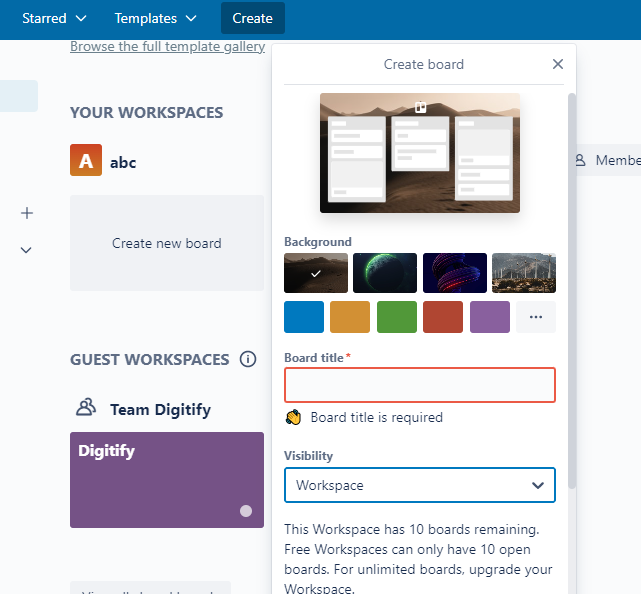
Step 4: Name your board using “Board Title”. Keep it specific and clarify the project.
Step 5: Now under “Visibility”, click on “Workspace”.
Think of a Board Title and Select Visibility from the options given.
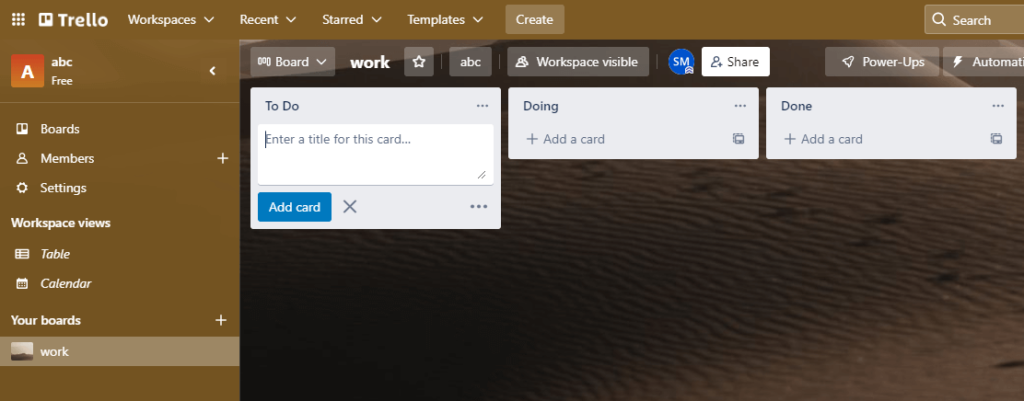
Step 6: Now click “Create” and you will be redirected to your dashboard where your board will be available.
Step 7: Once the Trello Board is successfully created, you can start to assign tasks to your team or yourself 🙂. The tasks will be classified in different status as to-do, doing and done as per the status you are on.
Dashboard after creating the board
How to Invite People to Trello Board
Depending on how your board is set up, you may need to be an administrator to send invites. If there aren’t any restrictions, adding team members can be done with a simple click of the Invite button. If the team member you wish to invite already uses Trello, you can just search for their name. If they aren’t using Trello, you can enter their email address and click Send Invitation.
If you don’t want to give someone full access to a Trello board, you have the option of adding them as an Observer. Observers can view boards and cards, comment and vote on cards, and download attachments, but they can’t move or edit cards, change board settings, or tick boxes on checklists.
Pricing
You can always checkout the pricing list by visiting the official website.
Conclusion
Trello’s strength is in its flexibility. You can use it as a simple collection of to do lists, or an entire Kanban productivity system. Once you’ve mastered the basics, you’ll be able to bend it to whatever system works best for you.
It transforms your machine of business to a well-oiled machine!!!
Google Docs has introduced many life changing features and among those one more addition is that Google Docs Now Lets You Copy Multiple Blocks Of Text And Edit. Google Docs is part of the Workspace ecosystem for Google and is used by millions for different purposes. This week, Google Docs is getting a new feature that lets you select not one but two different blocks of text, which can be useful in many ways for users.
“In Google Docs, you can now make multiple text selections at once, and apply actions such as delete, copy, paste, or format to all selections,”
Google explains in this blog post. It says the feature is rolled out to all the end-users by default, and they don’t have to enable it to work on the platform while editing copies.
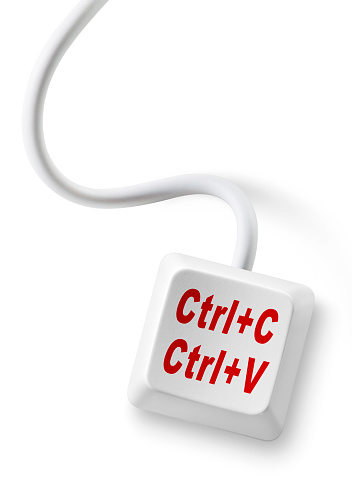
Ctrl+C and Ctrl+V computer keyboard button with cable isolated on white background.
Google has brought the new edit option to Workspace customers, legacy G Suite Basic and Business customers. The rollout happened in a phased manner from May 25 and is visible to everyone now.
Multi-selecting text is a useful feature of Google Docs.
Google is using the classic select and Control/Command tool to make this work.
So, the next time you want to format texts that are placed in different paragraphs, just select the first text/sentence, press the Control/Command button if you are on Windows/macOS system, respectively, and make the required changes. You have been able to use Control and select to copy images for many years, and now it is good to have the same tool working for text as well.
Having said that, Google says you can do just more than select two blocks of text with this feature. You can also change the highlight font type, size and even colour of the headings, as well as sub-headings in one, go by using the option in the toolbar called “Update style to match.”
If you just moved to the Netherlands or planning to move or tired of your current sim providers then it’s time to look for the best Dutch phone plan providers. Usually you can get a sim on the airport or any general grocery store in the Netherlands but it you are looking for a specific phone plan for the long term use you should spend some time to compare the sim providers.
A monthly contract, for example, may be preferable if you are studying for less than a year. A yearlong contract, on the other hand, may be more cost effective if you expect to work here indefinitely. Another consideration is service coverage: will you need to use your cellphone network outside of the Netherlands? Some businesses provide excellent coverage within the EU, while others provide reliable networks both within and beyond the EU.
Below you can compare different plans from different companies as per your need.
Which is the best Mobile Phone Provider Netherlands?