Download Chrome Extension of HubSpot + WhatsApp Integration
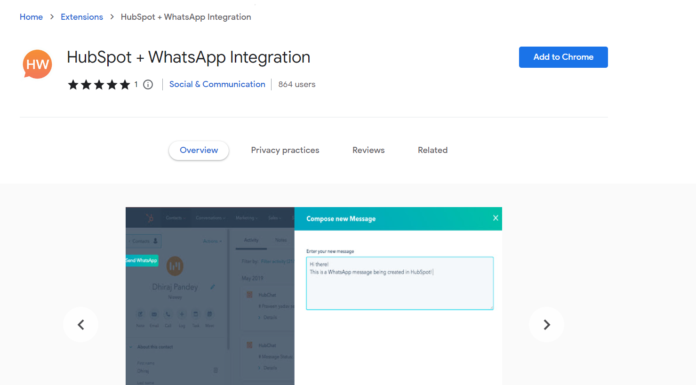
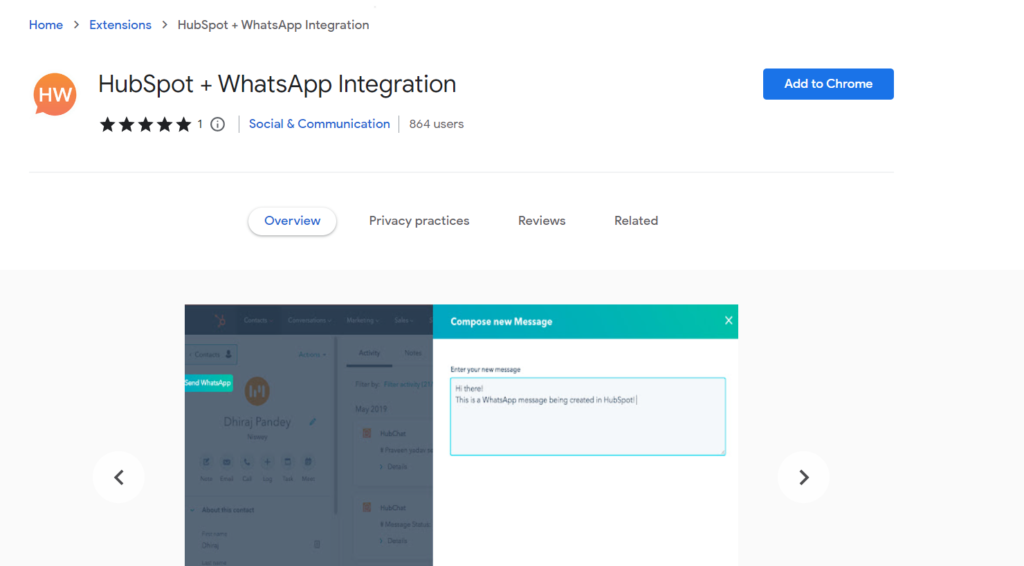
HubSpot + WhatsApp Integration
Select WhatsApp Web as the Channel and Complete the authorization with your Phone Number linked to your Business WhatsApp by clicking authorize button.
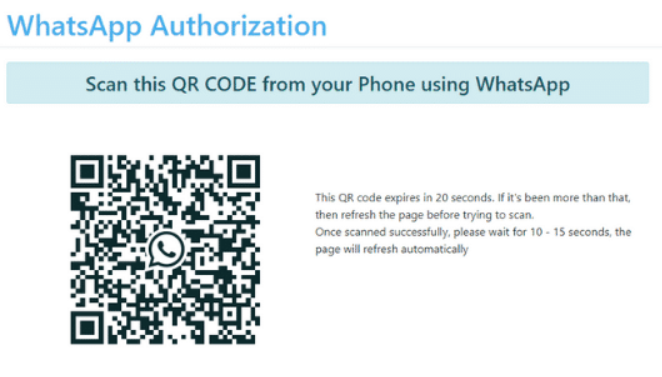
WhatsApp Web will ask you to complete the authorization by Scanning a QR Code with a WhatsApp App QR Code scanner from your mobile phone.
WhatsApp Authorization
Once the WhatsApp Authorization is done, you need to now Authorize HubSpot Portal
Select a HubSpot portal for which you want to use HubSpot+WhatsApp Integration
Once you’ve authenticated your HubSpot and WhatsApp accounts, your HubSpot+WhatsApp chrome extension will display a Dashboard option.
It’s Done
You can use this tool within HubSpot With the help of the Dashboard you can try to compose and send a message to one of your contact
This HubSpot Feature Helps You Keep Your Customers Happy
HubSpot, a platform for growing businesses, announced that its native WhatsApp integration is now available to all Marketing Hub and Service Hub Professional tier and above customers.
With over 2 million app users WhatsApp is the most popular messaging platform in the world. With HubSpot’s integration, teams can connect an existing WhatsApp business account to their shared inbox as a messaging channel to communicate with their prospects and customers, while also leveraging powerful data within HubSpot’s CRM.
Customers want to communicate with brands in the same way they connect with their friends and family.
By connecting your WhatsApp Business account to HubSpot you can seamlessly communicate with your customers, track conversations, and build stronger relationships them.
You can track all of your customer conversations from one place with HubSpot’s WhatsApp integration, ensuring that your customer service and marketing teams never miss an incoming message.
Hubspot WhatsApp Integration
How Does It Works?
To able to qualify for the WhatsApp HubSpot integration you must have have a WhatsApp Business Activated on with your number (using company’s official number always helps).
When customers text your company on WhatsApp number, their name and phone number are saved as timeline events in HubSpot, and sales team members can respond to these messages through HubSpot.
WhatsApp continuously updates its features and along with that it tries to get rid of outdated ones, same is the case with WhatsApp in 2023.
WhatsApp is a popular messaging app that continues to add advanced features that might not work on older models. The company has decided to end support for some phones, and from January 1, over 40 phones won’t be compatible with the messaging app as per multiple reports this week. Like all softwares, WhatsApp for business also needs regular updates to function smoothly, and these phones given here don’t have that anymore.
The support end is also a big part of WhatsApp looking to keep the platform secure, which is only possible if the said device can receive software updates and get support for advanced features that keep coming out frequently.
WhatsApp Messenger
List of Phones That Won’t be Supported by WhatsApp in 2023
The list has popular names like Apple, Samsung, HTC, LG and Sony Xperia among others. So, you can imagine the models will have mostly run out of manufacturer support and manufacturer is not launching software updates for them.
– Apple iPhone 5
– Apple iPhone 5c
– HTC Desire 500
– Huawei Ascend D
– Huawei Ascend D1
– Huawei Ascend D2
– Huawei Ascend G740
– Huawei Ascend Mate
– Huawei Ascend P1
– Lenovo A820
– LG Enact
– LG Lucid 2
– LG Optimus 4X HD
– LG Optimus F3
– LG Optimus F3Q
– LG Optimus F5
– LG Optimus F6
– LG Optimus F7
– LG Optimus L2 II
– LG Optimus L3 II
– LG Optimus L3 II Dual
– LG Optimus L4 II
– LG Optimus L4 II Dual
– LG Optimus L5
– LG Optimus L5 Dual
– LG Optimus L5 II
– LG Optimus L7
– LG Optimus L7 II
– LG Optimus L7 II Dual
– LG Optimus Nitro HD
– Samsung Galaxy Ace 2
– Samsung Galaxy Core
– Samsung Galaxy S2
– Samsung Galaxy S3 mini
– Samsung Galaxy Trend II
– Samsung Galaxy Trend Lite
– Sony Xperia Arc S
– Sony Xperia miro
– Sony Xperia Neo L
Seeing the iPhone 5 and 5c on the list is hardly surprising, as both the devices are no longer part of Apple’s iOS update cycle. Compared to that, you see a broader list of Android phones, from brands like HTC that is no longer a force it was many years back.
Good news for coders around. The Google Docs canvas feature gives users the ability to visualize code with industry standards, and helps make code readable and collaboration much easier.
Google Docs, first released in 2006, is a free web-based word processor in which documents can be created, edited, and stored as part of the Google Docs Editors suite of free web applications. The cloud-based productivity platform also includes Sheets, Slides, Drawings, Forms, Sites, and Google Keep.
Users can import, create, edit and update online documents in various fonts and file formats that can be accessed from any computer with an internet connection and web browser.
About Google Docs canvas feature to display code with code blocks
Tech giant Google has started to roll out a new smart canvas feature in Docs, that allows users to easily format and display code in Docs with code blocks.
“Previously, when working in Google Docs, collaborators who wanted to present code had to paste it in the document and then manually apply styles by highlighting syntax.”
the tech giant said in a Workspace Updates blog post.
Google Docs Canvas Feature
The new feature gives users the ability to visualize code with industry standards, making code readable and collaboration much easier.
This feature does not have admin control.
To format and display code in a Doc, you can go to Insert > Building blocks > Code blocks > choose the programming language or search @ > Code blocks > choose the programming language.
This new Google Docs feature will definitely make a lot of tasks easier and will help remote workers in maintaining work at all points. Try out this new google docs feature and let us know in the comments how helpful it was to your business.
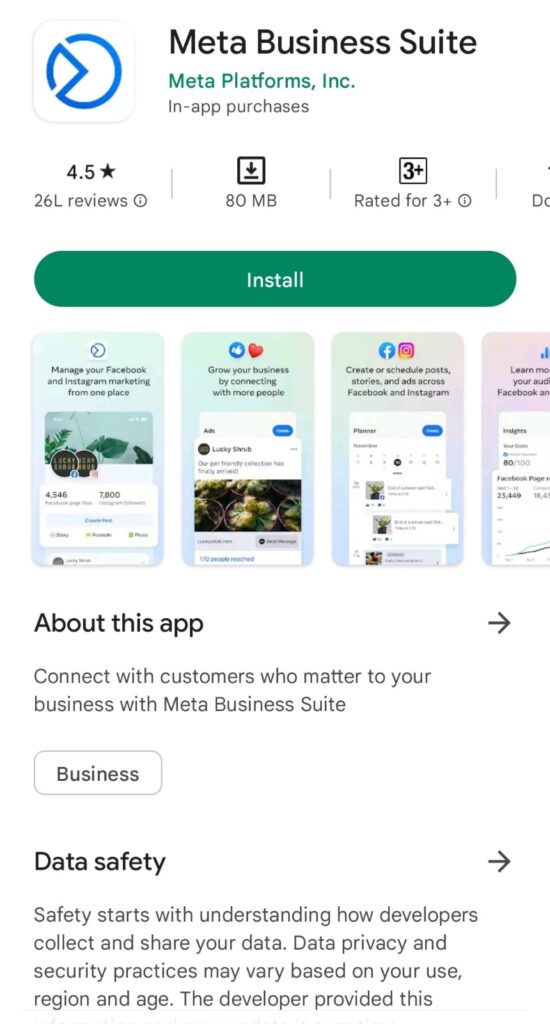
Meta Business Suite provides a range of tools that effectively increase your internet presence simpler and more affordable. By maintaining your internet presence in one location, Meta Business Suite can help you reach more people and stay current. All linked accounts on Facebook and Instagram may be primarily managed by small businesses and producers using Meta Business Suite.
Business Page – How to begin with Meta Business Suite, First of all, you should have a valid business page and account on Facebook or Instagram to use this application. Then, download the application from the Android Play Store or from the IOS App Store.
APPLICATION IN PLAY STORE
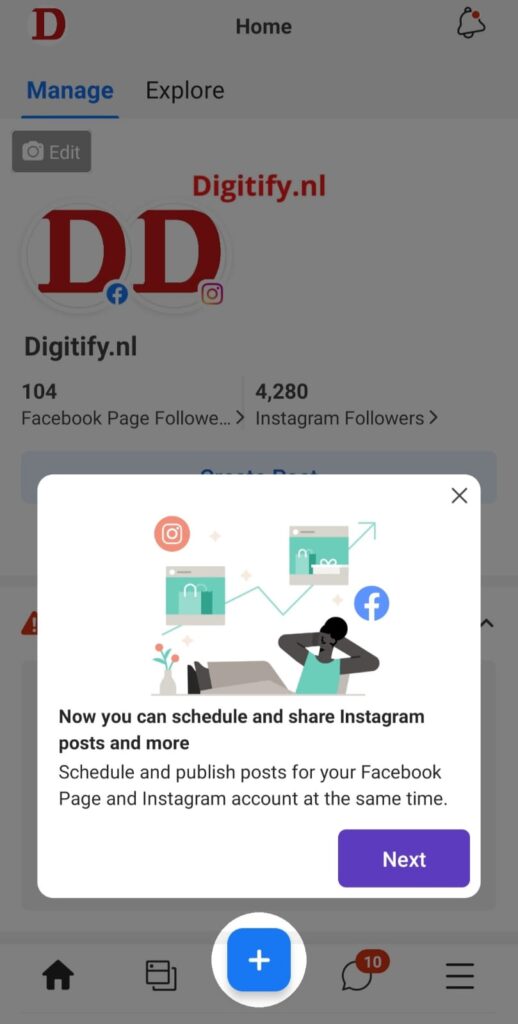
Connecting your account with Meta Business Suite – After downloading, Connect your Facebook Page and Instagram account in Meta Business Suite on your mobile phone or Laptop. Now, by clicking on the plus icon you can schedule and publish for your Facebook and Instagram accounts at the same time.
SCHEDULING YOUR POSTS
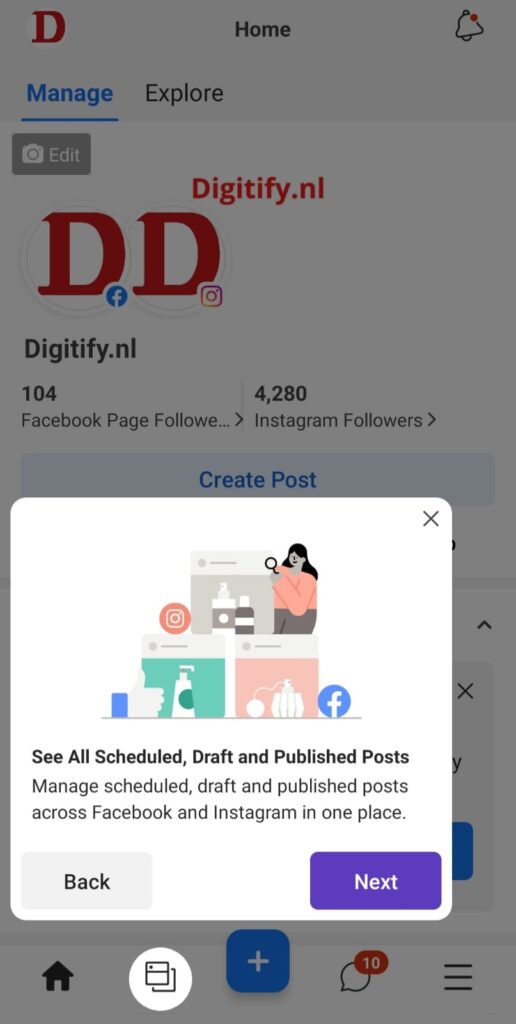
Content section – In the content section, one can see all Scheduled, Draft, and Published Posts one can manage his posts across Facebook and Instagram in one place.
MANAGING ALL POSTS
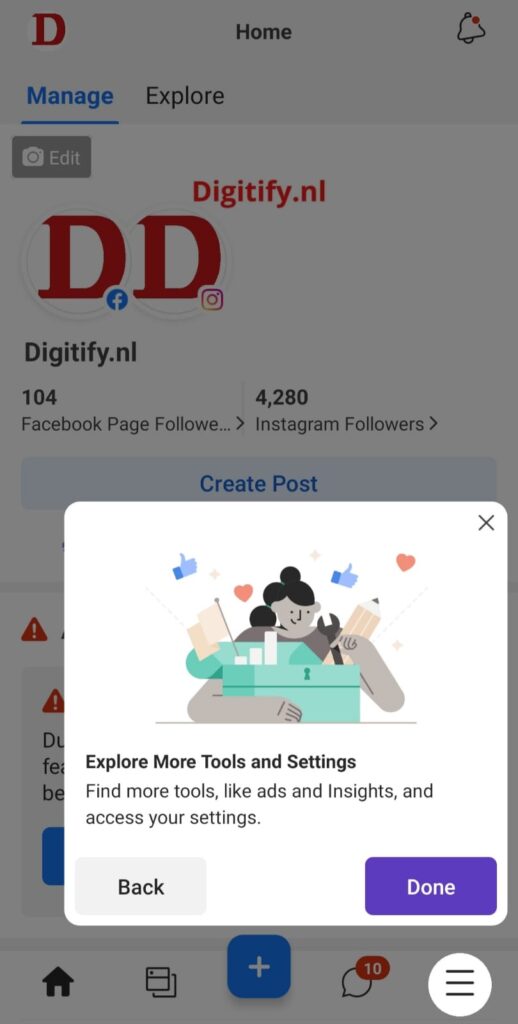
Tools and Settings – Then, by clicking on the bottom right corner you can explore More Tools like ads and insights and access your settings. Other features like Ads Manager, Business settings, and Page settings are included in this. Additionally, you can access your Facebook Page from here and modify your menu bar to give your preferred creator tools top priority. Therefore More tools section of the Meta Business Suite desktop application contains more Facebook tools and settings that you can use to handle your online presence as a business.
EXPLORING MORE TOOLS AND SETTINGS
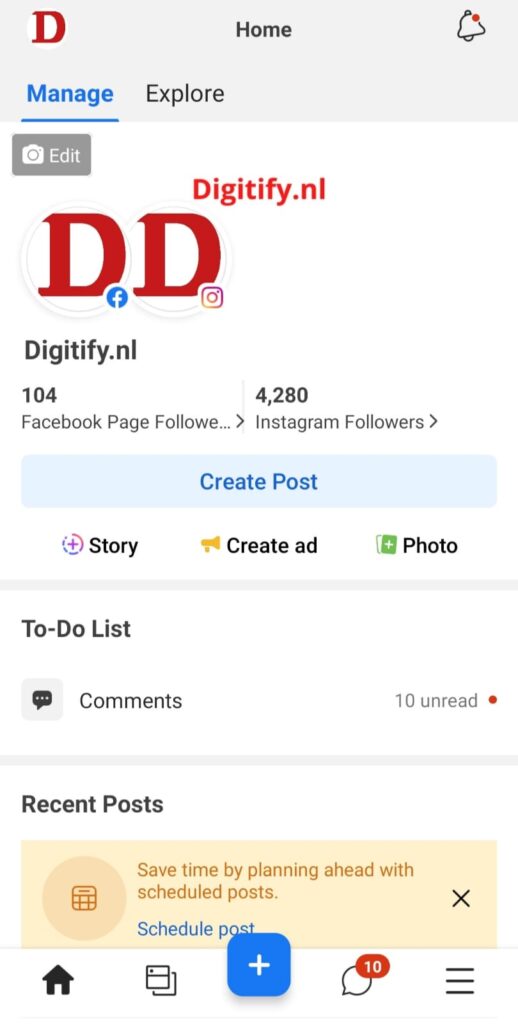
Adding your account – As after adding your Facebook page and Instagram account to the Meta business suite, your home page will show that you can publish your content and can create ads and you may also browse a list of your Facebook Page and Instagram account on your home screen. You’ll see insights, recent posts and advertisements, and updates. From here, you can also post an article or advertise your company.
HOME SECTION
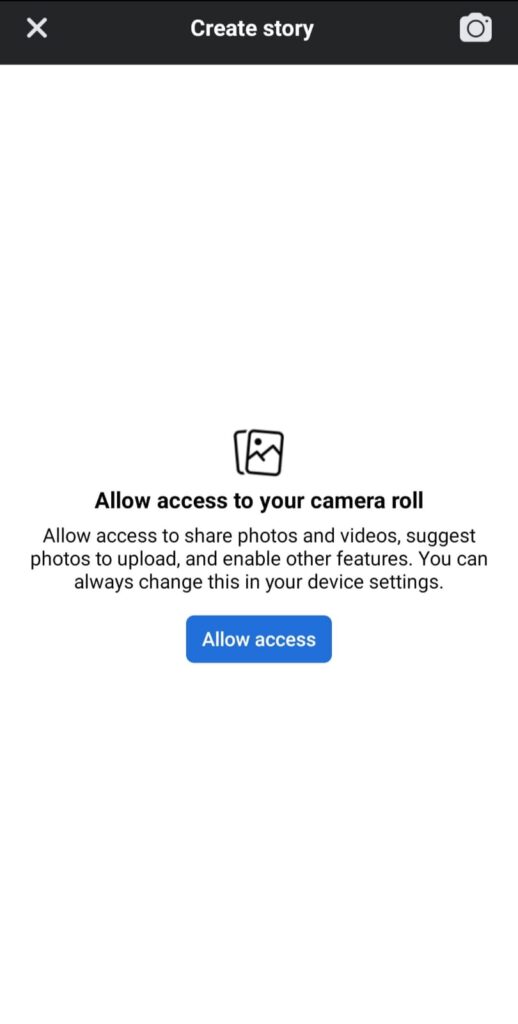
Creating Posts – By clicking on the story you can publish your story for your business.
ACCESS TO YOUR MOBILE PHOTOS AND STORIES
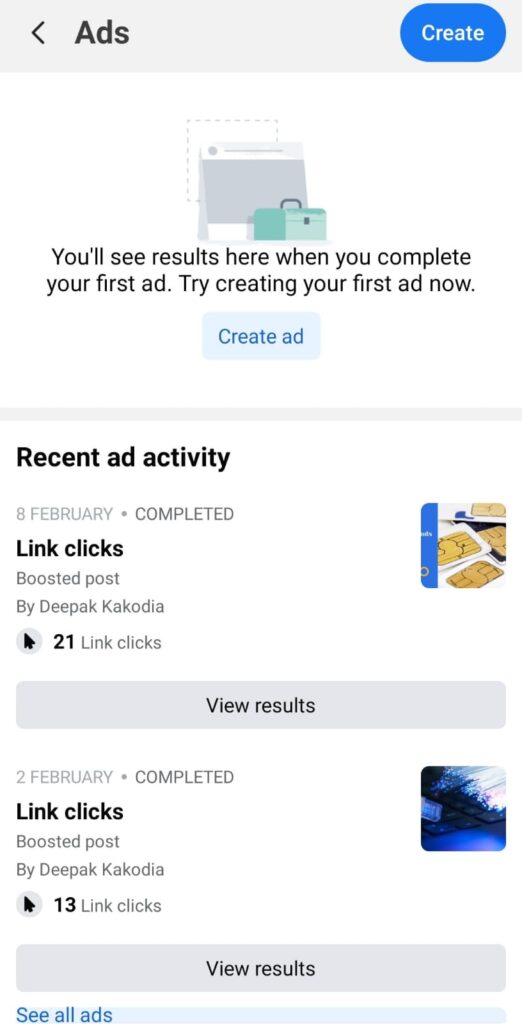
Creating Adds and Recent add activities – You can also create ads to boost up your story or photo and with that, you can also see the total percentage that how many people who are coming into your account.
CREATING AND MANAGING ADDS
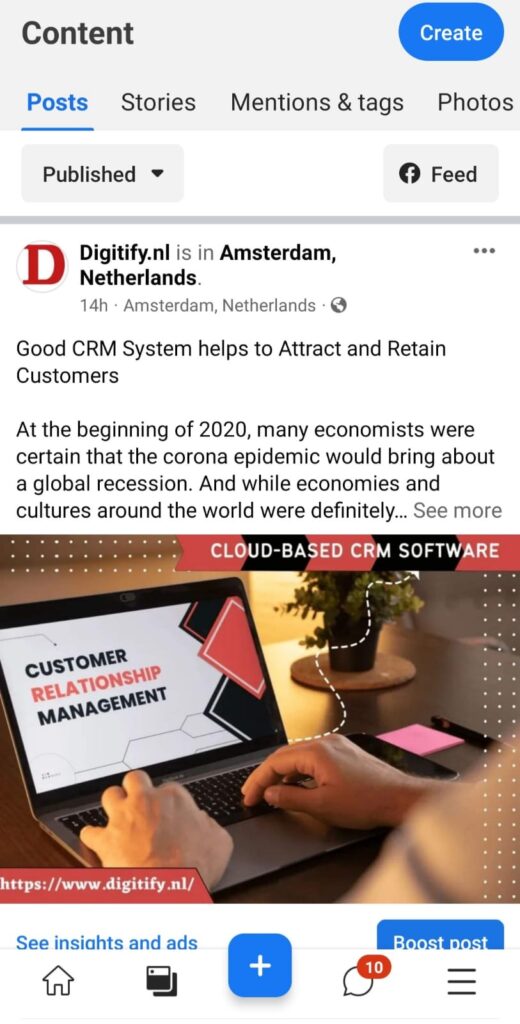
Publishing Posts – In the content section you can create your content and also see your photos, stories, posts, mention & tags section in which you have published all your attractive materials to attract the audience to come to your business account and you can further use adds to help boost your business.
UPLOADING AND MANAGING YOUR POSTS, PHOTOS, STORIES, TAGS, AND MUCH MORE
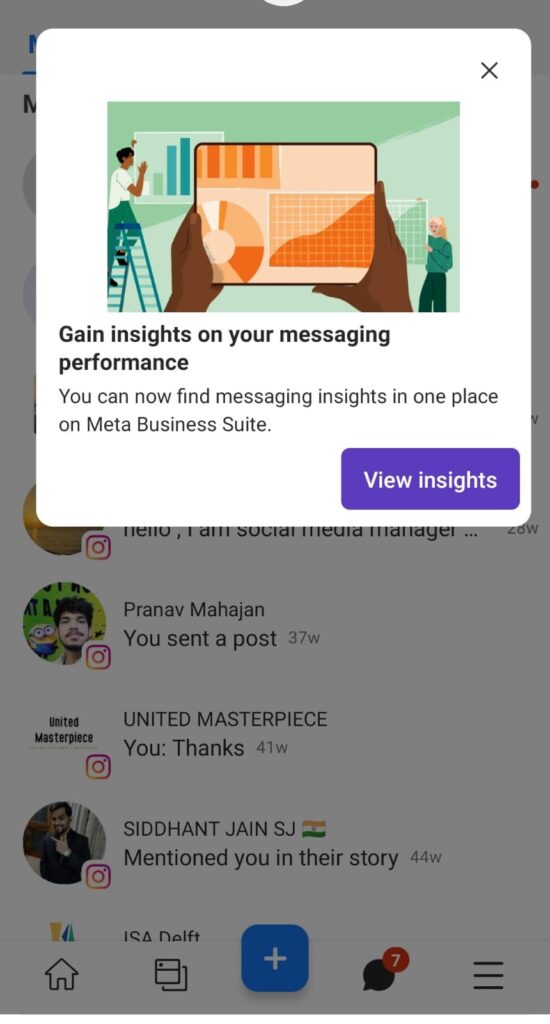
Messaging Insights – In the Inbox section you can find messaging insights in one place on Meta Business Suite. From your Social Media pages like Facebook Messenger and Instagram accounts, you may view new messages and comments. In order to save time while responding to frequently asked queries, you can also develop automatic responses.
INSIGHTS ON MESSAGING PERFORMANCE
Therefore, we can see how Meta Business Suite is helpful in promoting a business through its Facebook Page and Instagram account. By regularly maintaining all the posts, stories, photos, videos, and materials people are pushed towards your account having attractive and unique posts which help the people to act as consumers for your business.
In your marketing technology stack, a customer relationship management (CRM) platform is a crucial component. It enables you to increase lead generation, increase sales closing, and foster brand loyalty.
How to choose a CRM System for your business?
The following guidelines will help you choose a CRM system that will increase sales and revenue for your business.
Identify Your Needs
Although we are 99% certain of the CRM tools promise that they are the best option for your small business but not even these CRM system can evaluate your needs. After reviewing and evaluating your own firm and its processes, you must make that determination for yourself. Why? since no two companies are alike. What works for other might not works for you.
Consider your present requirements and any pain issues your team may be experiencing before looking at CRM choices.
Ask your staff what activities take up the majority of their time and whether there are any processes that they feel could be improved.
For instance, how much time does your team spend manually entering lead and customer data? You would probably require a CRM with automation functionality in this situation.
Does it pose a challenge for your team to remember which interactions prospects had with your team and what they covered? If so, you would require a CRM that keeps track of your leads’ interactions.
Questions you might ask yourself
Do I need to generate more leads?
Do I have any stalled deals in my pipeline?
Do I require improved contact information access?
Do I need to boost team productivity?
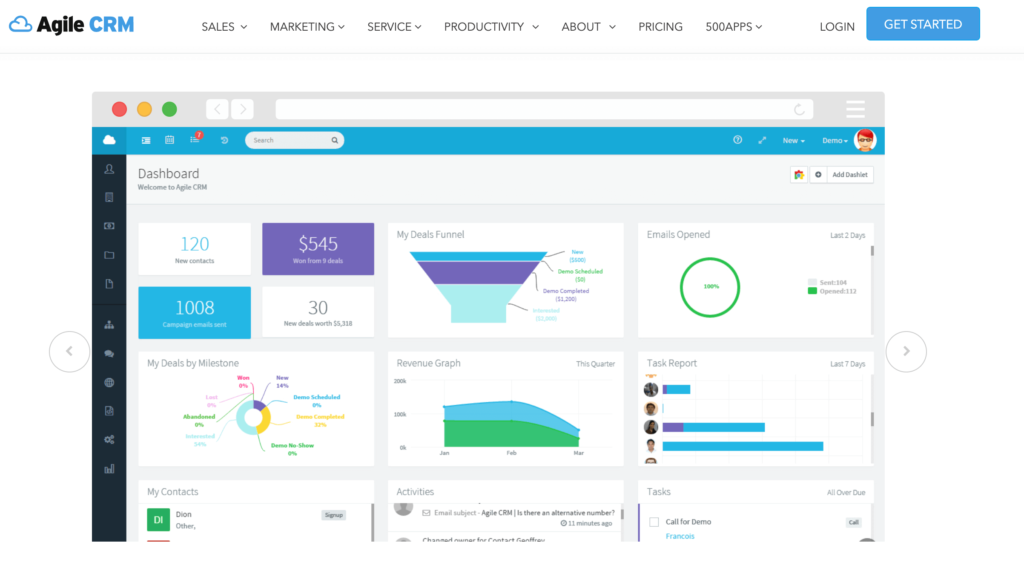
Glimpse of a CRM Dashboard
Research on a CRMSystem
Remember your requirements, problems, objectives, and features you are looking for before you do research for a CRM system.
Make a list of CRM system that you are aware of and you would like to add in your favorite list. Perform a competitor analysis with in-depth feature analysis keeping your needs as a center point. Once you’ve compiled a list of potential CRM solutions, you can begin evaluating them to determine which one is best for your business based on your prepared checklist.
Plan a budget for a CRM System
You must keep in mind that as a small business owner, your budget is constrained. You don’t want your CRM system to drain all of your company’s funds and leave you with astronomical overhead costs for the product. CRM software should advance your company, not destroy it.
So, be sure to stick to your budget when selecting a solution for your small business. Here are a few tips to help you find the best tool for the cheapest price:
Ensure there are no additional fees for any CRM capabilities you intend to employ.
See if paying annually instead of in monthly installments would be less expensive.
Look for discounts.
Do a good research on the pricing: Compare this while doing competitor analysis
Check for Free Test Trial: This can help you to narrow down your options and make your selection
Look into integration opportunities
Every small business aspires to become a large corporation one day. As a result, scalability is an important feature of a good small business CRM. You should choose a solution that provides a comprehensive list of integration options and is constantly working to expand the number of available integrations.
After all, you want your CRM vendor to grow alongside you – it can be a real pain in the rear to part ways and have to transfer all of your data.
At the beginning of 2020, many economists were certain that the corona epidemic would bring about a global recession. And while economies and cultures around the world were definitely impacted, this prognosis ended up being a little too early. But for the time being, it appears that this was a stay of execution. Without trying to create a self-fulfilling prophecy, it appears that there will be a greater likelihood of a recession in 2023 as a result of, among other things, the Russian invasion of Ukraine, rising costs, and a lack of labor.
Customer relationships Management (CRM Systems) Systems as a priority
Adopting a CRM System among the early indicators of a recession? As per sources doing so entails cutting spending in order to draw in more clients. “The needs of current clients must be the only focus of businesses. The secret to customer retention success is being truthful in managing expectations and offering the same level of care and attention.”
“Good customer relationships help businesses in both good and bad times,” . In the latter situation, word-of-mouth advertising creates new business opportunities without spending a dime on marketing, in addition to providing much-needed money. bring clients to the business.”
A good CRM system is essential so that “you can really put the consumer first in this situation, to start with“.
You can use it, among other things, to pinpoint your business’s main clients so that you can subsequently customize customer service and increase the relevance of your communications.
A stronger bond is ensured by being able to provide clients with a better customer experience. The CRM system also provides you with information on a wide range of sales, marketing, and customer service procedures.
Automation and repeating successful approaches can save you form the headache of unavailability of the employees.
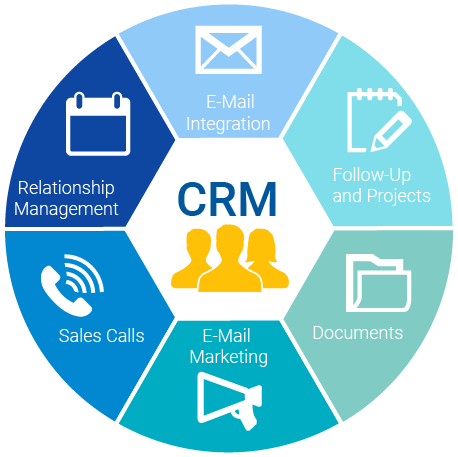
CRM (Customer Relationship Management)
Final Thoughts
In general, account should be taken of the previously mentioned tightness on the labor market because of the uncertain economic future, companies will want to switch quickly. Recently, there has been striking increase in the demand for Salesforce experts.
However, unemployment in the Netherlands is still very low, which means that the implementation of CRM systems cannot always be arranged in the desired short term, so hiring external expertise can ensure that projects can be implemented efficiently and faster.
On Friday, Marc Benioff, CEO of Salesforce, warned staff members that individuals employed during the epidemic have not been as productive as earlier generations of employees. Salesforce news.
Benioff reportedly asked a barrage of open-ended questions on the company’s culture on Friday morning in a public internal Slack channel “to elicit the greatest level of feedback,” as seen in internal screenshots SFGATE received. At Platformer, Zoe Schiffer was the first to report receiving the message.
“How can we at Salesforce make our staff more productive? In particular, new hires (2021–2022) who were hired during the epidemic will have considerably reduced productivity. said Benioff. Is this consistent with office policy?
Salesforce Failed To Track the Performance of Their Employees!
Marc Benioff, co-CEO of Salesforce, wants new staff to increase their output (Report: CNBC), Benioff publicly questioned if remote work was the cause of new hires’ lower productivity in a Slack message to staff members. The co-CEO inquired via Slack, “Are we not creating tribal knowledge with new hires in the absence of an office culture…?” During the height of the epidemic, the leading provider of cloud-based software was a pioneer in advocating working from home, and the business today has a hybrid policy.
In response to slowing sales growth, Salesforce let go of hundreds of staff in early November.
Last month, Bret Taylor left his position as co-CEO of Salesforce, and in January, Stewart Butterfield will leave his position as CEO of Slack, which Salesforce owns.
Twitter Reacts
Before Salesforce co-CEO Bret Taylor's surprising departure announcement last week, tensions had been growing between him and Marc Benioff for months. Story w/ @EmilyGlazer and @laurenthomashttps://t.co/p1GFZCzc7c
Salesforce is not private, it's publicly traded. It's also part of the Dow. CEO is offering relocation to any employees who are uncomfortable living and working in Indiana because of Indiana's extreme conservative policies. Protecting employees will have the Board's backing
No, it is NOT a private business, but if he is going to use his company as a political tool, I'm sure that long term stockholders are exiting very quickly.
Business Analytics, is either “essential or very crucial to their present and future initiatives,” for 54% of businesses (as per Forbes). The underlying significance of Business Analytics is that it makes data-driven decision-making a practical reality.
Business performance management adds practical insights to the presentable and analytical formats that Business Analytics tools can analyse and convert business data into, making a mix of the two the best option.
Business Analytics tools of 2022
Efforts at digital transformation in a wide range of businesses can benefit from business information. Data, workflows, and collaboration are converging, and it is obvious that without data-based insight, intuition is useless when choosing which product lines to focus on or altering supply chains.
Below are the Top 3 Business Analytics Tools Of 2022:
Business Analytics Tools
Ahana Cloud
In order to query data stored in AWS S3-based data lakehouses, Ahana offers Ahana Cloud for Presto, a managed data analytics solution. (Presto is an open-source, distributed SQL query engine with great performance.)
Ahana Cloud for Presto Community Edition, a free version of the company’s service, was introduced in June by the company. According to the company, this version of the service makes it simpler for enterprises and organisations to get started with a data lakehouse system utilising open-source technologies.
With the exception of a few of its business capabilities, the open-source edition offers many of the same elements as Ahana’s commercial product to make the setup of a Presto-based data lakehouse system centred upon data kept in AWS S3 easier.
Rockset
A cloud-based solution called Rockset from the same-named company offers quick analytics capabilities for real-time data. According to the business, the database at the heart of Rockset enables users to search, combine, and aggregate data at scale with sub-second response times.
Through 2022, Rockset continues to develop connections to other data sources, including the Snowflake Data Cloud platform, the Amazon Managed Streaming for Apache Kafka service, and data connectors to the Microsoft Azure cloud platform and SQL Server database.
Using Intel’s third-generation Xeon Scalable processors with integrated AI accelerators, Rockset released a new version of its software in November, resulting in an 84 percent increase in performance.
MotherDuck
DuckDB, an open-source, in-process SQL OLAP database management system, is the foundation upon which startup MotherDuck is creating a serverless data analytics system.
According to the business, DuckDB is an in-process database that developers, data scientists, and analysts can use to execute quick data analytics using normal SQL on data from any location.
DuckDB, a database created specifically for analytics, offers the highest performance for large-scale aggregations, is optimised for read operations, stores data in a compressed columnar format, and conducts updates in a transactional ACID-compliant manner.vantage of any CPU’s capabilities, even on a laptop, to analyse data that is stored on their own computer, in a corporate database, or in the cloud.
Email Campaigns are a way to promote business and reach your audience and Mailchimp makes that possible. Here is a step-by-step guide on how to Create Email Campaign with Mailchimp.
What is an Email Campaign?
An email campaign is a sequence of marketing efforts that contacts multiple recipients at once. Email campaigns are designed to reach out to subscribers at the best time and provide valuable content and relevant offers. Using email campaigns allows you to build deep and trusting relationships with your customers.
How to Create Email Campaign with Mailchimp
Find below the step-by-step guide on how to Create Email Campaign:
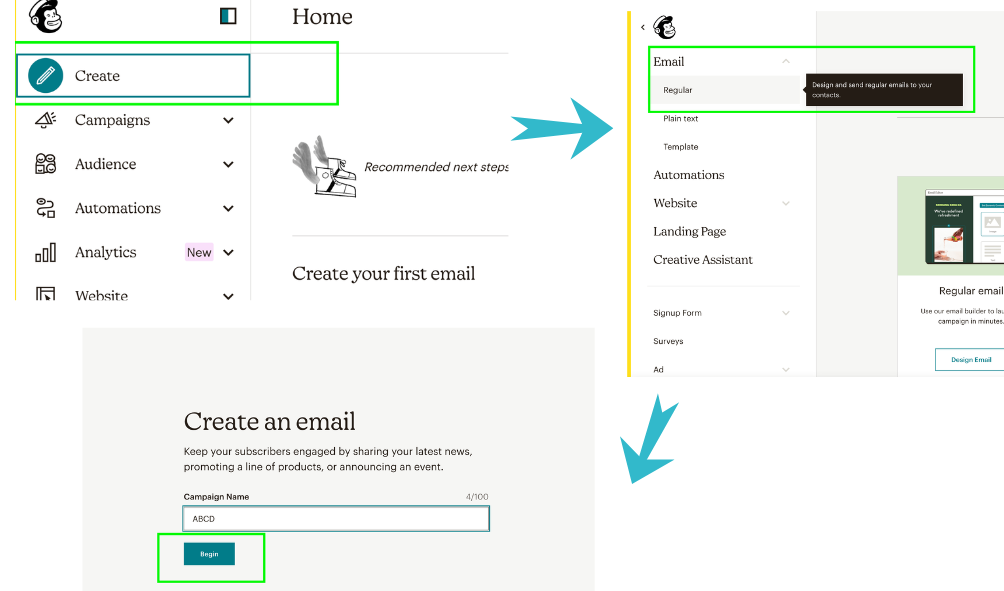
Create an Email
Click the Create icon.
Click the Email drop-down and Click Regular.
Enter a campaign name and click Begin.
Steps to create an email.
Setup and Design
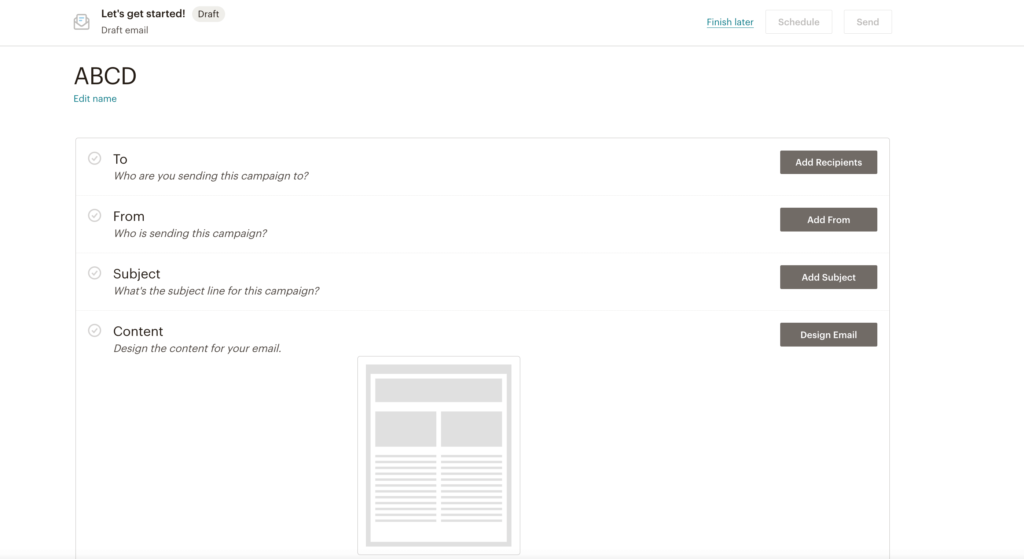
MailChimp’s email builder is designed to let you work on the different parts of your email in the order you choose, and review everything at once before you send.
There are four main things to do before you click send.
Add your recipients in the To section.
Add your from name and from email address in the From section.
Add your subject line in the Subject section.
Design your email in the Content section.
As each task gets completed, a green checkmark will appear next to the corresponding section.
Four kinds of actions you have to take before sending.
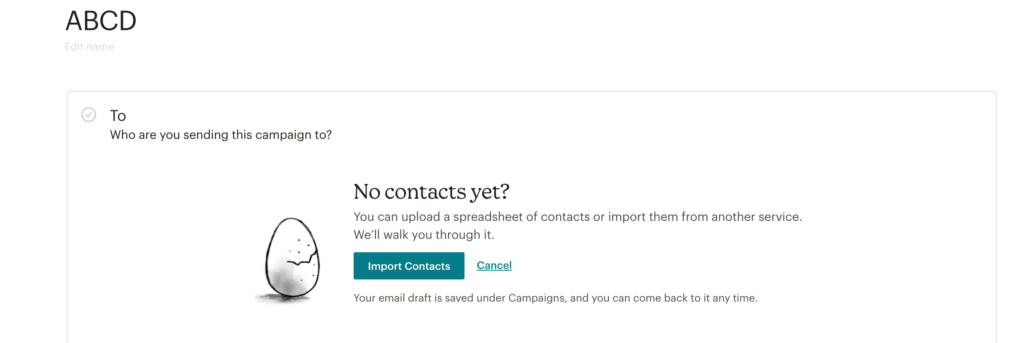
Add Recipients
To choose your recipients:
In the To section, click Add Recipients.
In the Audience drop-down menu, choose the audience you want to send to.
In the Segment or Tag drop-down menu, choose All subscribers in audience, Group or new segment, or one of the available saved or pre-built options.
Check the Personalize the “To” field box to display the recipient’s name instead of their email address. This is more personal and may help you avoid spam filters.
Click Save.
If you haven’t yet imported your contacts, click on import contacts and then Add recipients.
Send to a Custom Segment or a Group
To send a campaign to a one-off custom segment or a group within your audience, follow these steps.
Select the audience you would like to send to in the Audience drop-down menu.
Click Group or new segment in the Segment or Tag drop-down menu.
Create the segment that you would like to send to.
Click Save.
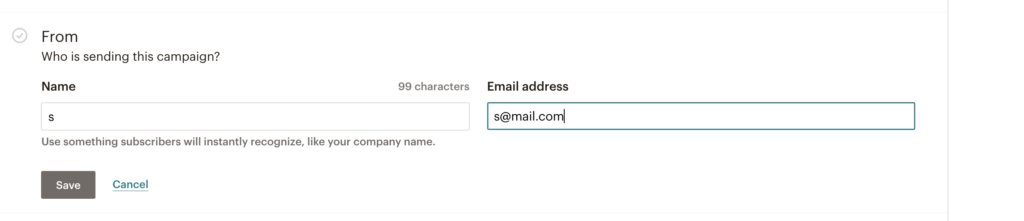
Add From Name and From Email Address
To Enter details of who is sending the campaign, follow these steps.
In the From section of the email builder, click Add From.
Enter your from name and email address.
Click Save.
Enter details of who is sending the campaign
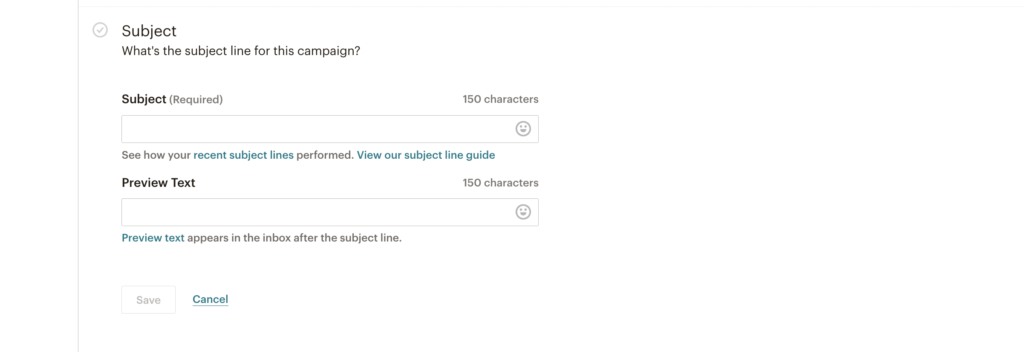
Add Subject
To set your subject line and optional preview text, follow these steps.
In the Subject section of the email builder, click Add Subject.
In the Subject field, enter a subject line for your email.
In the Preview text field, you can enter up to 150 characters that will display next to your subject line in recipients’ inboxes. This field is optional.
Click Save.
Add Subject and the Preview text for the campaign
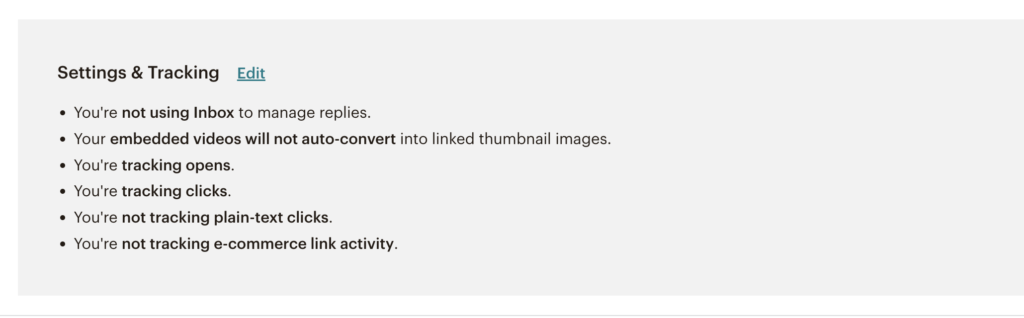
Settings and Tracking
When you create a regular email, we enable certain tracking options by default. This includes open and click tracking, as well as e-commerce tracking if you have a connected online store.
To edit your tracking options, follow these steps.
Scroll to the Settings & Tracking section and click Edit.
Check the boxes next to the tracking options you want to enable and click Save.
Edit the tracking options after creating campaign
Send Campaign
After you’ve completed the To, From, Subject, and Content sections of the email builder, you should see a green checkmark next to each. That means your regular email is ready to send immediately.
If you’re ready to send the email to your subscribers, click Send on the top right corner of your campaign page. Then, in the Review Your Campaign modal, click Send Now to confirm your send.